On this page
- 1. Read your numbers each morning — and build a dashboard of your own
- 2. Keep the business details right — including the currencies you take
- 3. Run the loyalty programme
- 4. Plan a markdown for the end of the season
- 5. See who has access, and change what someone can do
- 6. Bring someone onto the team
- 7. Connect your AI assistant
- With your assistant
The owner’s manual
This manual is for the person who owns the business and signs for it. Read it with the office open in another window: every chapter is one thing you will actually do, walked step by step, with a screenshot of each page you will see.
What you need. An owner’s sign-in to the office, and a few minutes per chapter. Nothing here changes your records until you press a save button yourself; the walks show where things are and what happens when you act.
The example shop. The screenshots and the figures come from Linden & Vale — a fictional Toronto boutique with a year of trade, born for these pages. Every figure below was read from its own records on 17 October 2026; nothing is typed by hand. Your own shop’s pages will show your own figures in the same places.
1. Read your numbers each morning — and build a dashboard of your own
In the office this is the play Build a dashboard — Lay out the canned metric widgets you want at a glance, read the live figures, and rename or re-lay it as your questions change.
The mechanisms in this chapter: Insights — dashboards and ready-made reports · Lists — finding things
What you will do
Open the office and read the morning picture: sales today and this week, how people paid, what is running low. The office home shows the standing figures; a dashboard of your own lays out exactly the tiles you want to see first — a shop with two registers and an online lane will want different tiles from a single counter.
The walk
Where it starts: the office’s Dashboards page.
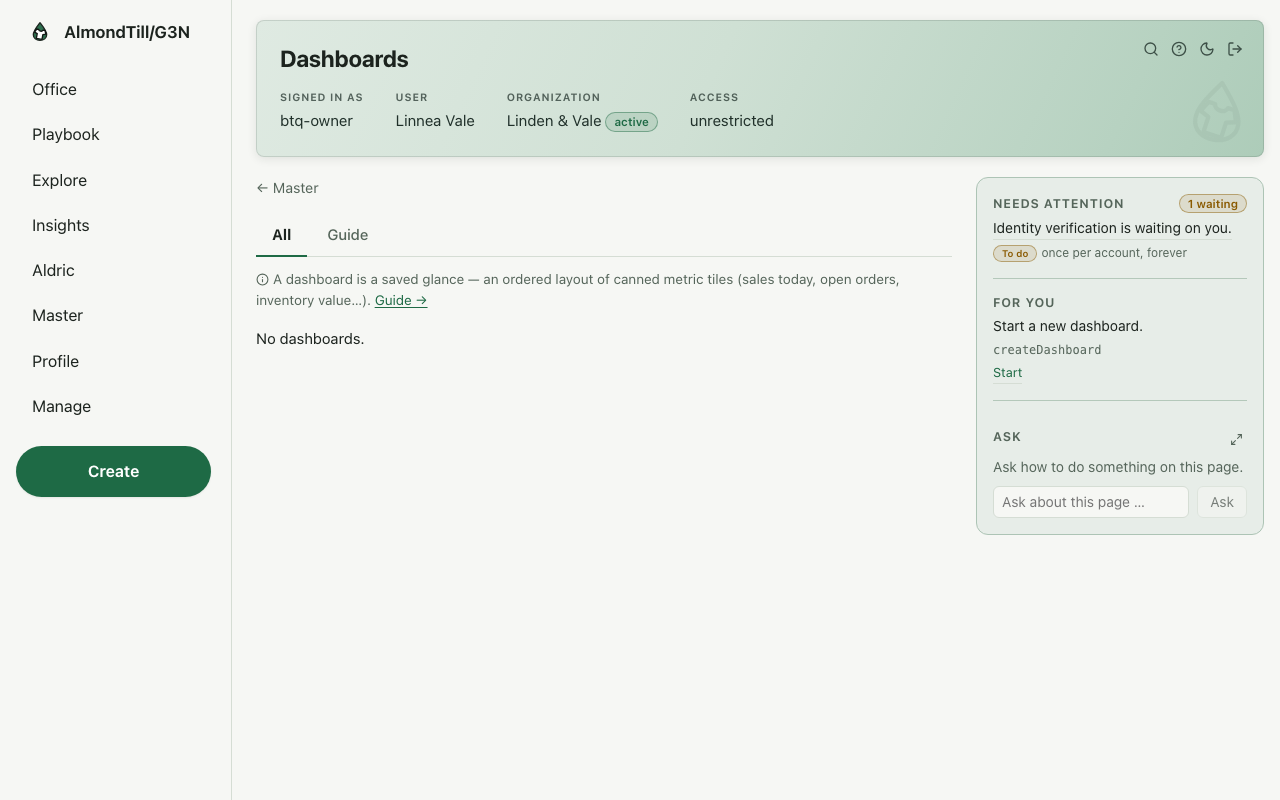
Step 1. Lay out the widgets.
Step 2. Read the live figures — each tile answers honestly or not at all.
Step 3. Rename it or replace the layout.
What you see
Last month the example shop rang 834 sales for CAD 281315.16 net. People paid like this: cash CAD 58484.45 · card CAD 221515.70 · gift card CAD 826.28. On the Dashboards page the example shop has no dashboards yet; each tile of a dashboard answers from the live records or says honestly that it cannot.
Try it
- Open the office home and find sales today, sales this week and the tender mix.
- Open Dashboards and press Create; lay out three tiles you would want to see first thing.
- Rename the dashboard after a week once you know which tiles you actually read.
Where to learn more
- The dashboard record and its operations: Dashboard.
- The same walk as the office runs it: Build a dashboard.
- The course in the office: on the Playbook, open Learn and the lesson Build a dashboard.
2. Keep the business details right — including the currencies you take
In the office this is the play Fix the business details — Correct your organization’s own record — name, registration facts, the details on your paperwork.
The mechanisms in this chapter: Lists — finding things · A record page
What you will do
Your organization’s own record carries the facts on your paperwork — the legal name, the trading name, the currency you count in and the currencies your tills and your online shop may take. When the shop starts taking a second currency, or stops, this is where you say so; a till can only tender a currency the organization allows.
The walk
Where it starts: the office’s Organizations page.
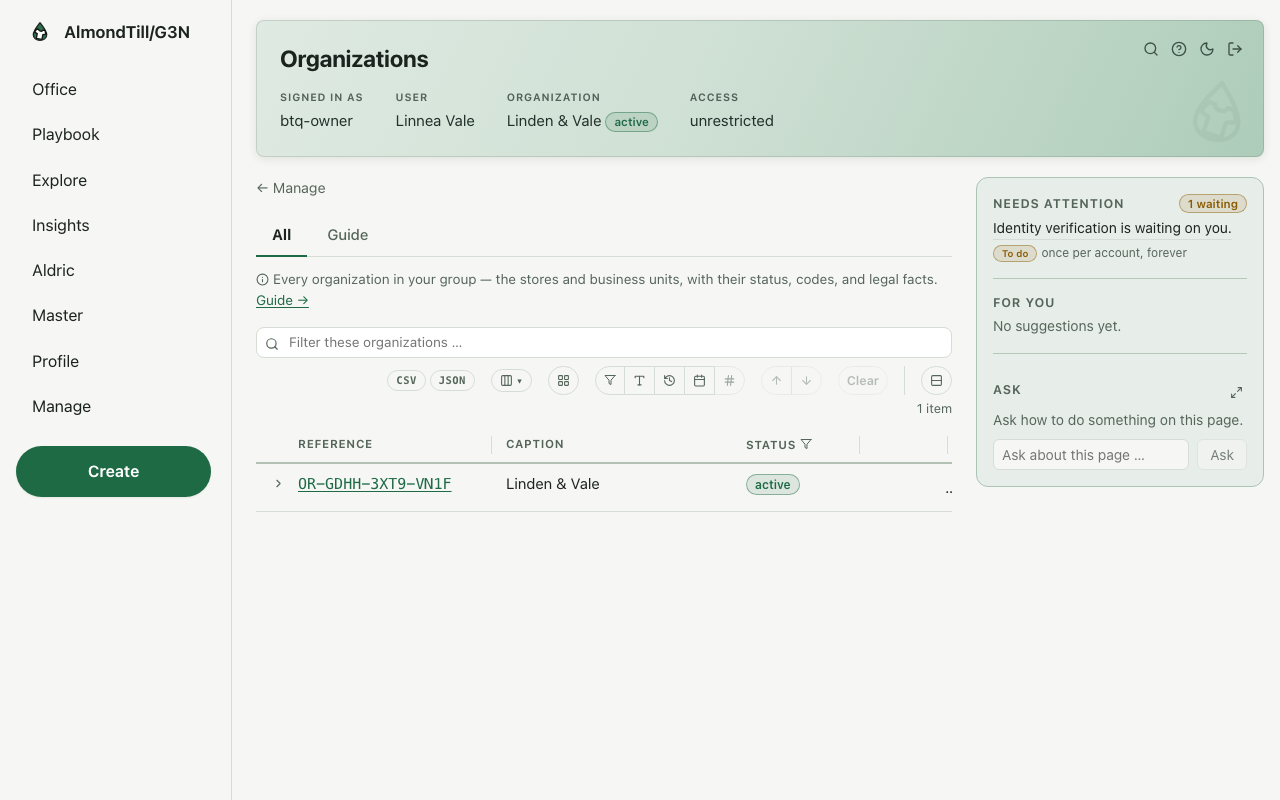
Step 1. Save the corrected details onto the organization record.
What you see
The example shop is Linden & Vale; it counts in CAD and takes CAD and USD.
Try it
- Open Organizations and open your own organization.
- Read the allowed currencies; add one, save, and read it back on the record.
- Remove it again, save, and read the record once more — the change is complete only when the record says so.
Where to learn more
- The organization’s own operations: Organization structure.
- The same walk as the office runs it: Fix the business details.
- The course in the office: on the Playbook, open Learn and the lesson Fix the business details.
3. Run the loyalty programme
In the office this is the play Start a loyalty programme and enrol members — Define how customers earn and redeem points, enrol members, and correct a member’s points with a reason when you must — every entry stays in the ledger.
The mechanisms in this chapter: Lists — finding things · A record page
What you will do
Decide how shoppers earn and redeem points, name the tiers and their thresholds, enrol members, and — when you must — correct a member’s points with a reason that stays on their ledger. Raising a tier’s threshold changes who earns the better rate from that day on; nobody’s past points move.
The walk
Where it starts: the office’s Loyalty programs page.
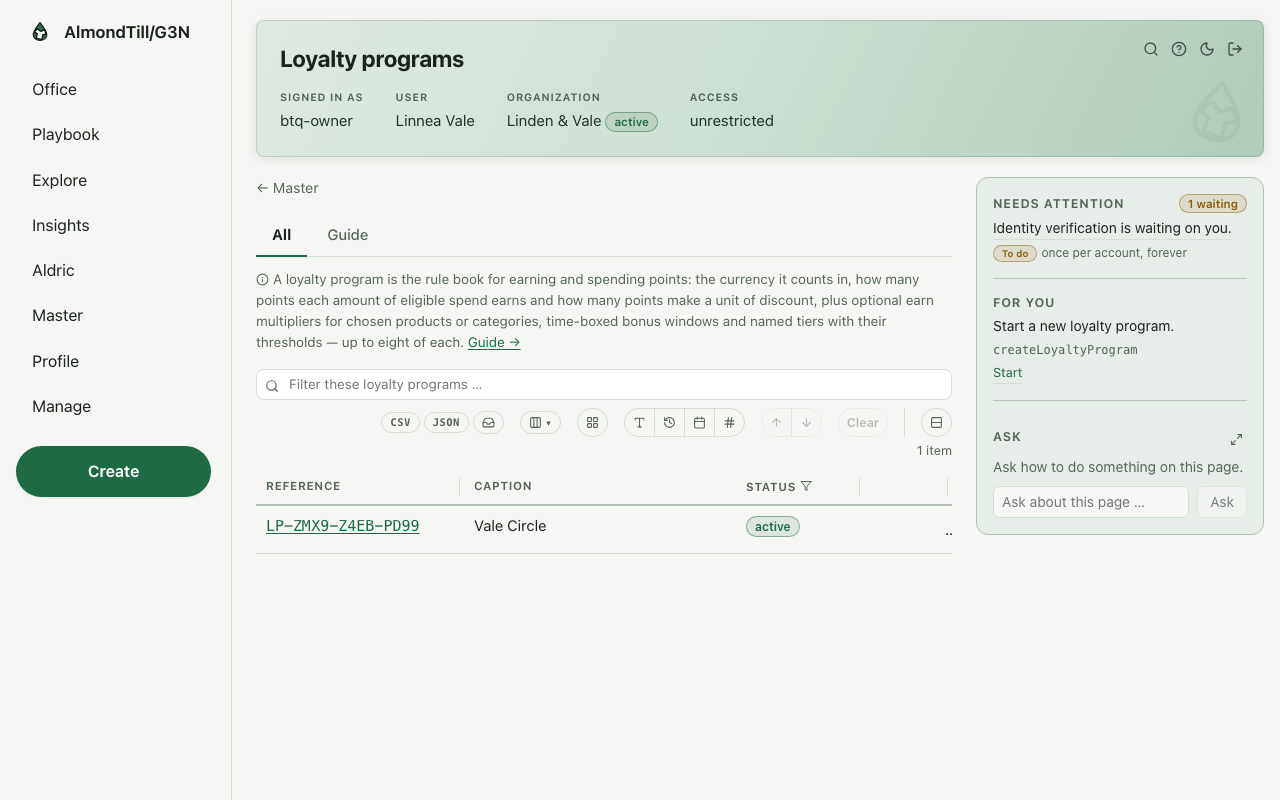
Step 1. Define the programme — how points are earned and redeemed. Open Loyalty programs.
Step 2. Enrol a customer as a member. Open Loyalty members.
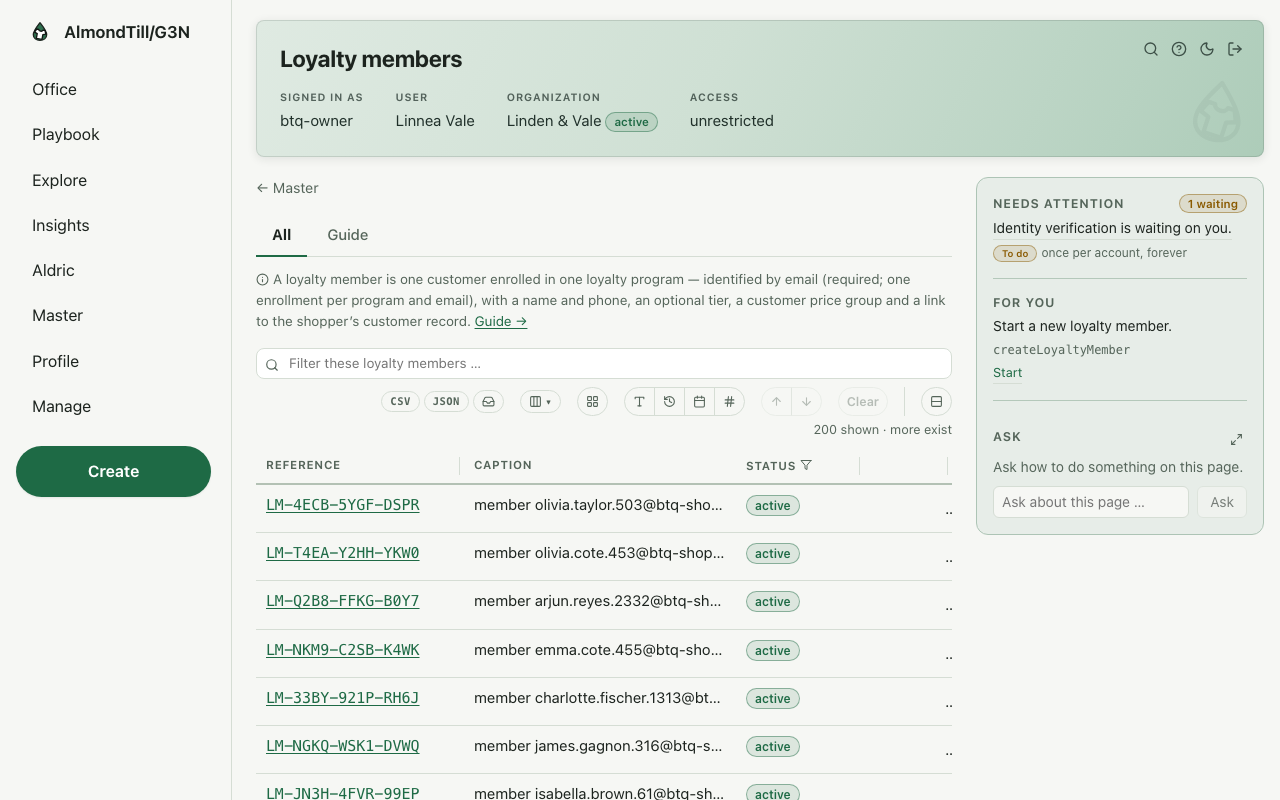
Step 3. Add or remove a member’s points with a reason — a signed, visible ledger entry.
Step 4. Read a member’s points history — every earn, redemption and adjustment.
What you see
The example shop’s programme is Vale Circle — 1 point per CAD 1.00 spent; 100 points redeem CAD 5.00; the tiers Insider (from 0 points) · Gold (from 2000 points, ×1.5). One of its members holds 2509 points over 8 entries (2025-10-13..2026-10-12).
Try it
- Open Loyalty programs and open your programme; read the earn rate, the redeem rate and the tiers.
- Raise the top tier’s threshold and save; open a member and read their points — the balance is unchanged, the tier rule is new.
- Open Loyalty members and read one member’s ledger: every earn, redemption and adjustment, in order.
Where to learn more
- The loyalty programme record and its operations: Loyalty program; the members: Loyalty member.
- The same walk as the office runs it: Start a loyalty programme and enrol members.
- The course in the office: on the Playbook, open Learn and the lesson Start a loyalty programme and enrol members.
4. Plan a markdown for the end of the season
In the office this is the play Plan scheduled price cuts (a markdown) — Write the markdown plan — the price cuts and their dates — schedule it so the cuts fire on time, and cancel it before it fires if plans change.
The mechanisms in this chapter: Lists — finding things · A record page
What you will do
Write the price cuts and their dates ahead of time, schedule the plan so the cuts fire on their own, and cancel it before it fires if plans change. A scheduled plan changes live prices on its dates without anyone at a keyboard; a draft changes nothing.
The walk
Where it starts: the office’s Markdown plans page.
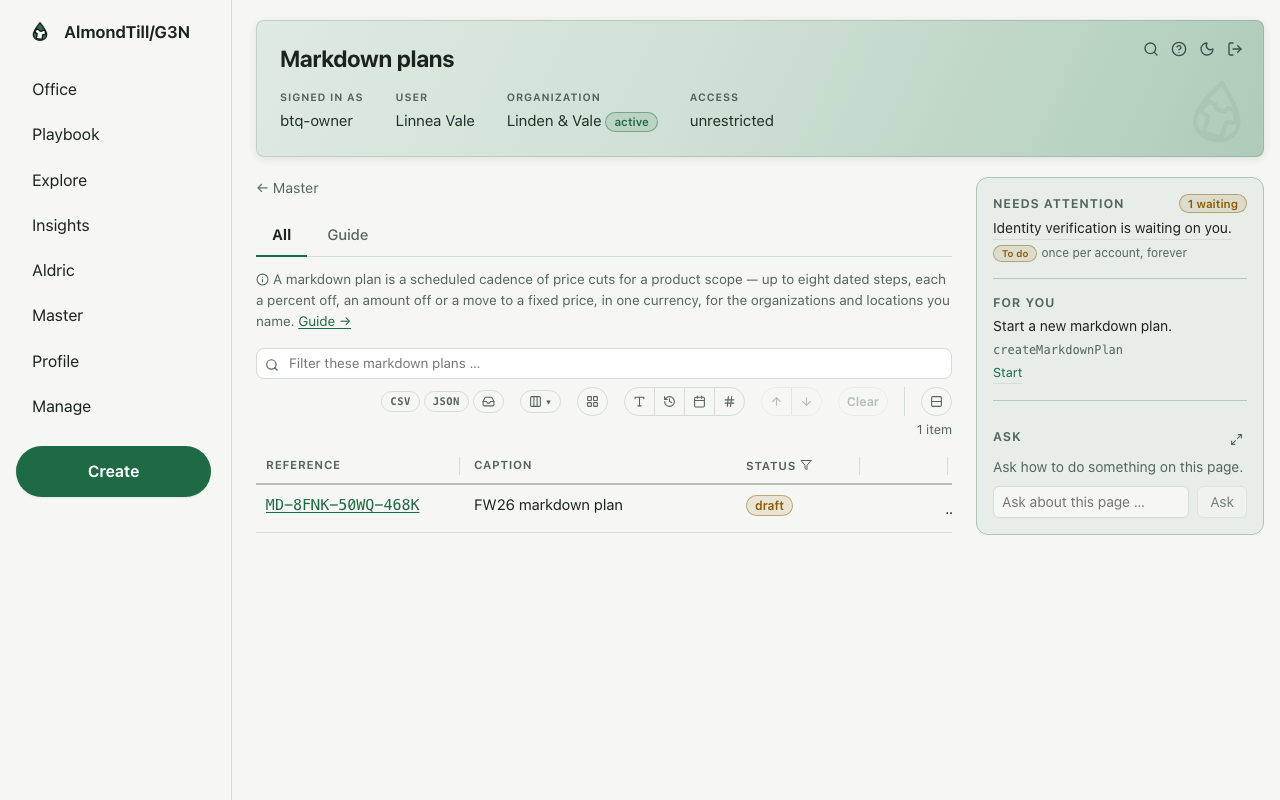
Step 1. Write the plan — the cuts and their dates.
Step 2. Schedule it — the cuts fire on their dates and change live prices.
Step 3. Cancel it before it fires if plans change.
What you see
The example shop holds the plan FW26 markdown plan — a draft with 2 price cuts — read it before you schedule your own.
Try it
- Open Markdown plans and open the draft; read the cuts and their dates.
- Schedule it and read the status back; the first cut fires on its date.
- Cancel a plan that has not fired yet and read the status once more.
Where to learn more
- The markdown plan record and its operations: Markdown plan.
- The same walk as the office runs it: Plan scheduled price cuts (a markdown).
- The course in the office: on the Playbook, open Learn and the lesson Plan scheduled price cuts (a markdown).
5. See who has access, and change what someone can do
In the office this is the play Change what someone can do — Adjust a person’s roles — what the platform will and will not let them do.
The mechanisms in this chapter: Lists — finding things · A record page
What you will do
Read the full picture of what a person may do today, then replace their roles with the new set. Access follows the roles, not the person’s title: a cashier who covers the back room on Saturdays needs the receiver’s role for that, and nothing else changes.
The walk
Where it starts: the office’s Users page.
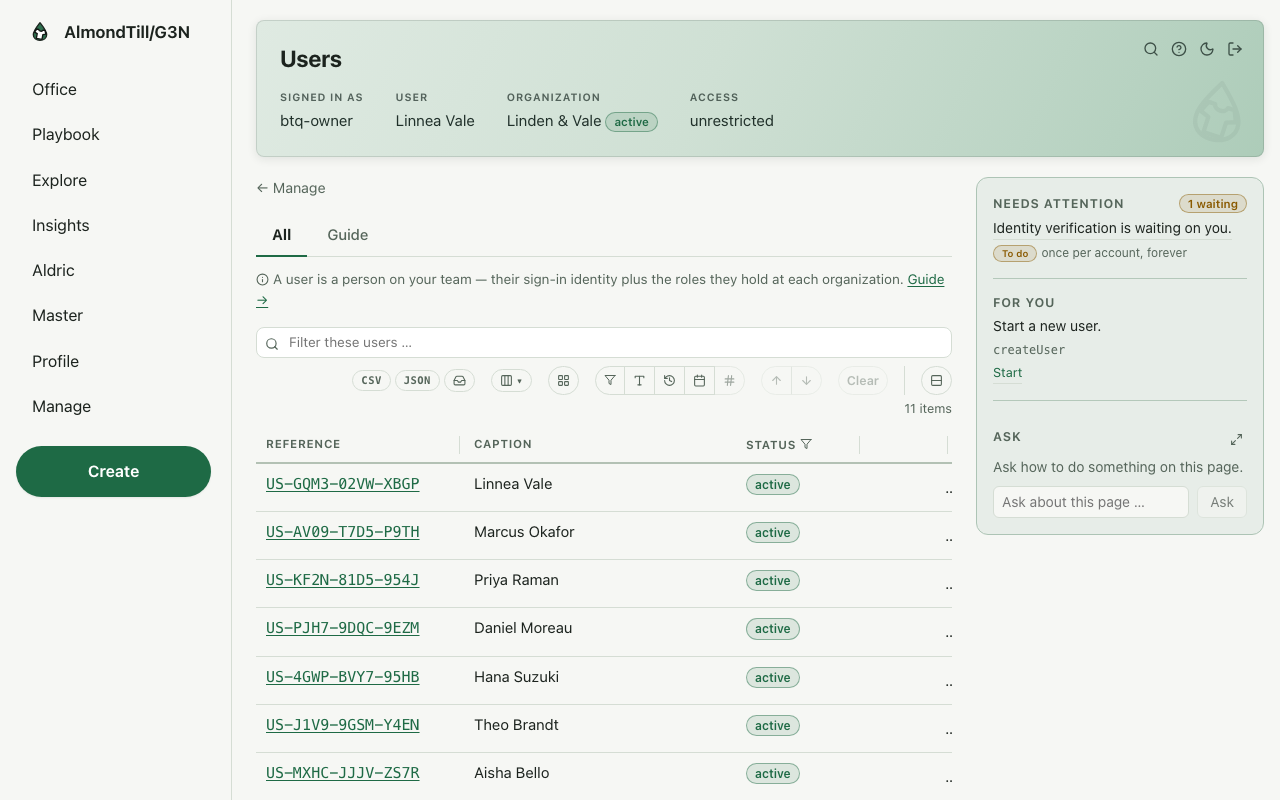
Step 1. See the full picture of what they may do today.
Step 2. Replace their role assignments with the new set.
What you see
The example shop has 11 people: Mei-Ling Chow (active) · Jonah Whitfield (active) · Sofia Rinaldi (active) · Liam Carter (active) · Aisha Bello (active) · Theo Brandt (active) · Hana Suzuki (active) · Daniel Moreau (active) · Priya Raman (active) · Marcus Okafor (active) · Linnea Vale (active).
Try it
- Open Users and open one person; read what they may do today.
- Add one role and save; read the picture again — the new permissions are listed.
- Take the role away and save; the picture returns to what it was.
Where to learn more
- The user record and its operations: User; the roles: Role.
- The same walk as the office runs it: Change what someone can do.
- The course in the office: on the Playbook, open Learn and the lesson Change what someone can do.
6. Bring someone onto the team
In the office this is the play Bring someone onto the team — Give a person a working identity here — who they are, what they may do, and the team they sit in.
The mechanisms in this chapter: Creating and changing — the wizards
What you will do
Give a new person a working identity: who they are, what they may do, and the team they sit in so shared work and team messages reach them. The first page asks everything in one pass; nothing is created until you confirm on the last page.
The walk
Where it starts: the office’s Bring someone onto the team page.
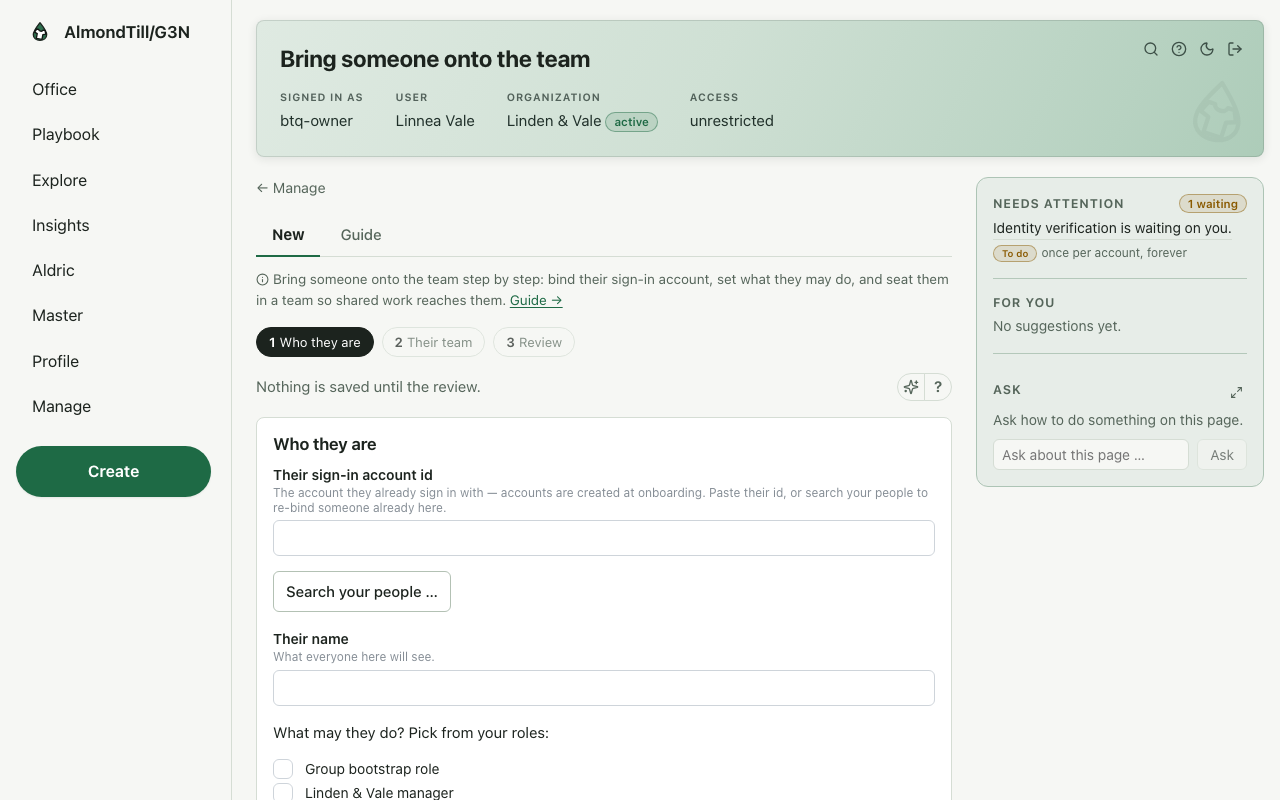
Step 1. Create their user — binds their sign-in account and sets what they may do.
Step 2. Seat them in a team so shared work and team messages reach them.
What you see
The example shop’s team today is 11 people, every one of them brought on this way.
Try it
- Open Bring someone onto the team and read the pages without saving — what is asked, and in which order.
- Bring one person on; then open Users and read their entry.
- Open Teams and read the team they now sit in.
Where to learn more
- The user record and its operations: User; the teams: Team.
- The same walk as the office runs it: Bring someone onto the team.
- The course in the office: on the Playbook, open Learn and the lesson Bring someone onto the team.
7. Connect your AI assistant
In the office this is the play Connect your AI assistant — Connect Claude or ChatGPT to one organization as yourself — paste one URL, sign in, pick the organization and the access: Read, or Read and make changes you confirm.
The mechanisms in this chapter: The office at a glance
What you will do
Let Claude, or any assistant that speaks the same protocol, read your shop — or, if you choose, make changes it first shows you and you confirm: approve the connection for one organization as yourself, pick Read or Read and make changes, and disconnect it whenever you like. Any member of the organization can connect their own assistant; it acts as that person, within their own role’s access; the owner sees and can disconnect every connection.
The walk
Where it starts: the office’s Connect your AI assistant page.
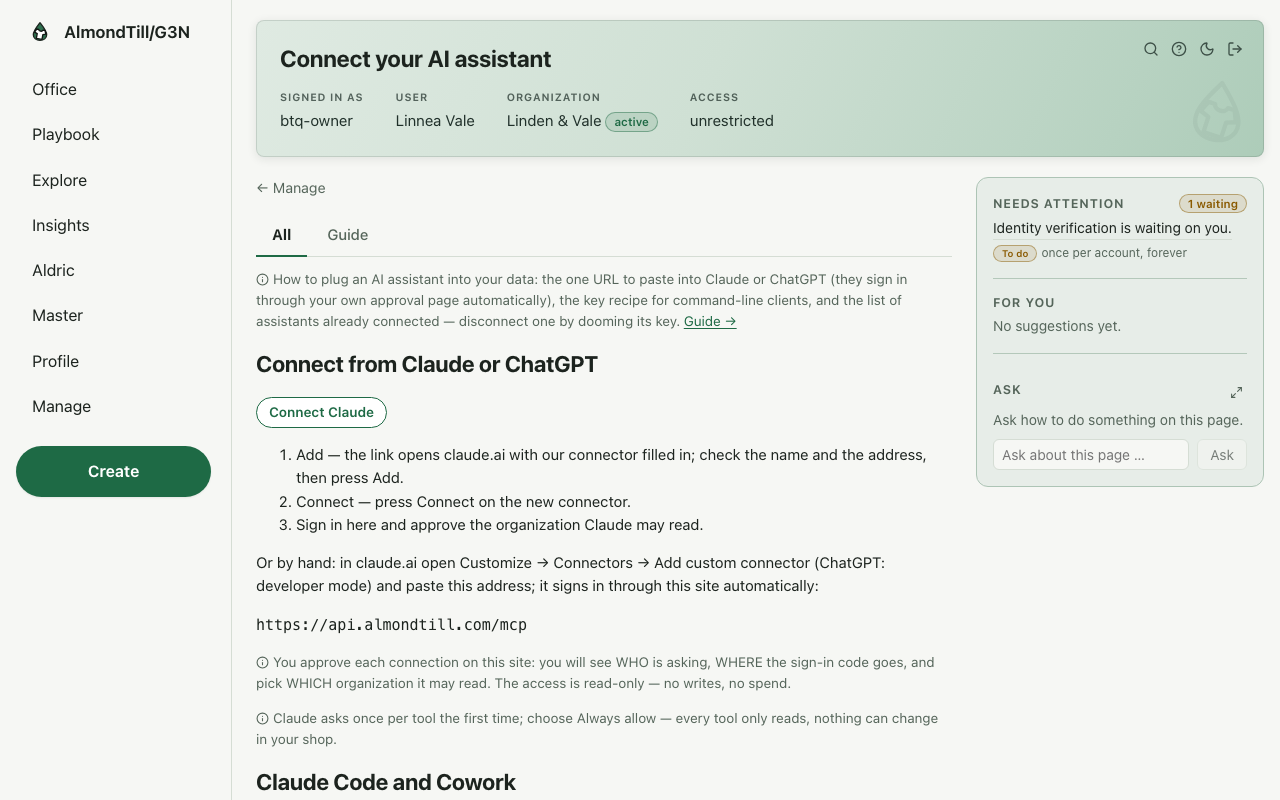
Step 1. Review who is asking and where the sign-in code would go.
Step 2. Approve for ONE organization — Read, or Read and make changes — or deny; your browser carries the answer back.
What you see
The organization the example shop’s owner would approve is Linden & Vale.
Try it
- Open Connect your AI assistant and read who is asking before you approve anything.
- Approve for one organization; ask the assistant for last month’s sales and compare with your own figures.
- Disconnect, and ask again — the assistant can no longer read.
Where to learn more
- The same walk as the office runs it: Connect your AI assistant.
- The course in the office: on the Playbook, open Learn and the lesson Connect your AI assistant.
With your assistant
Connect Claude or ChatGPT on the office page Connect your AI assistant.
Ask first: where am I, and what is next? The assistant calls whats_next and answers who you are, what needs your attention and what is yours to do.
The ready-made questions: Start my day · What needs my attention · Show me a report · Walk me through a play · Teach me.
You may ask for every ready-made report (24).
You can ask for every play of your handbook (78).
A change is shown as a rehearsal first. It happens only when the person says yes, as them, within their access.
People, devices, card payments and new organizations stay in the office.