On this page
How the office works
This book is for everyone who opens the office — read it first. The office is one set of mechanisms — the side rail, the lists, a record’s page, the wizards, Ask, Aldric, Explore, Insights, the Guide and the Handbook, the courses and your profile — and every role manual leans on them. This book explains each one once, with a sample walked in screenshots, so the role manuals can get on with the work itself.
The example shop. The screenshots come from Linden & Vale — a fictional Toronto boutique with a year of trade, born for these pages — seen as its owner sees it. The figures were read from its own records on 17 October 2026; nothing is typed by hand. Nothing here changes your records: the one sample that writes, Aldric’s consultation in chapter 7, is the example shop’s own, and it says so there.
1. Your first day
What it is
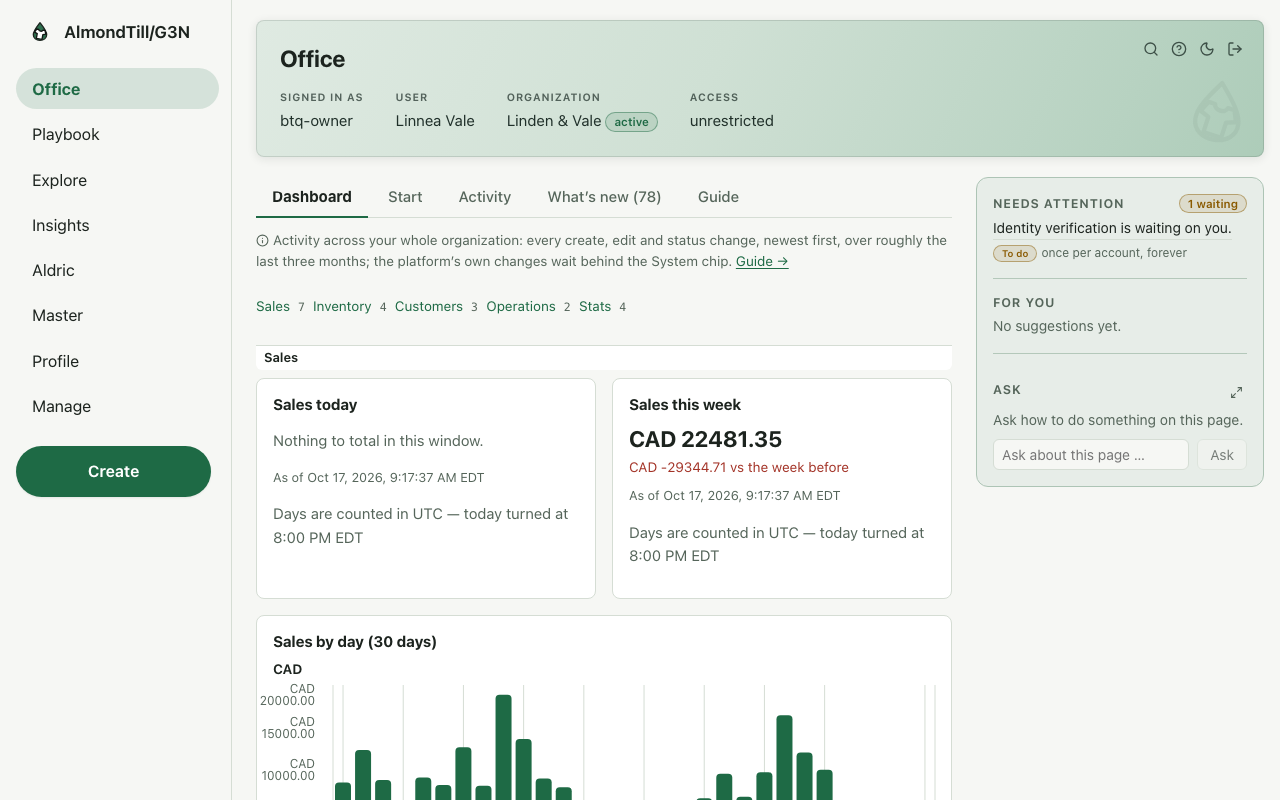
You sign in with your email and your password. If you belong to more than one organization, the office asks which one you mean before it opens; with one, it opens straight away. The first page is the office home: the day’s figures, what needs attention, and the rail down the left that takes you everywhere else.
A sample, walked
The owner of the example shop has signed in. The home page shows the shop’s standing figures; the rail on the left lists the zones; the right-hand panel lists what needs attention and what is for you.
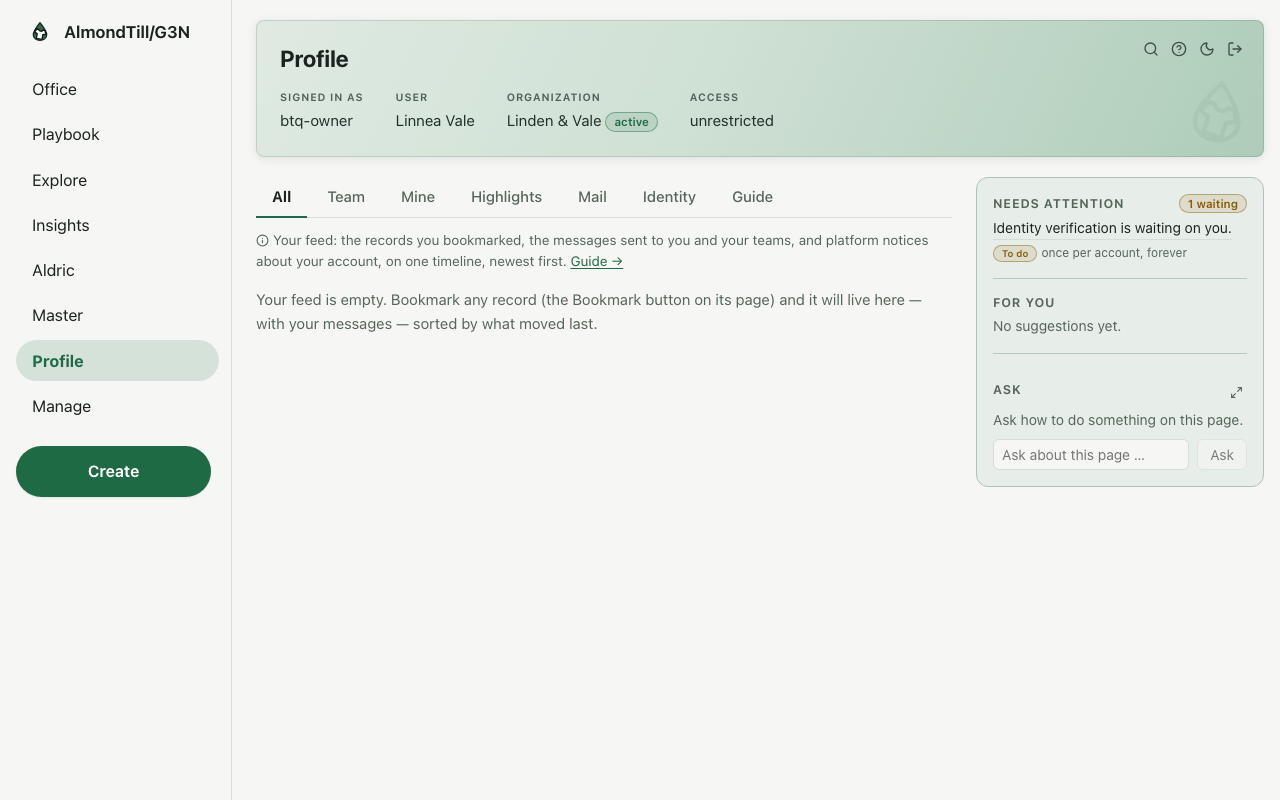
Your profile is one press away — the Profile entry on the rail. It carries your own details, your team, your highlights and your mail; chapter 12 walks it.
Where you meet it
Every day, at the start: the sign-in, then the home page. The home page is also where you land after any sign-in from another device.
Try it
- Sign in and read the home page before you open anything: today’s figures, the attention list, the rail.
- Open Profile from the rail and read your own name and roles.
- Sign out with the door icon at the top right, and sign in again.
2. The office at a glance
What it is
The rail down the left has eight zones, in this order: Office (the home page and your dashboards), Playbook (the things people do, as plays you can follow), Explore (finding and drilling down), Insights (dashboards and ready-made reports), Aldric (your assistant), Master (the records every other record is made of — brands, categories, sizes), Profile (you and your team) and Manage (the organization itself: locations, people, tills, taxes). The top strip carries the search box (press the magnifier, or ⌘K / Ctrl+K, or /), the Handbook, the light-and-dark switch and the sign-out door. The right-hand panel shows Needs attention — your own worklist — and For you.
A sample, walked
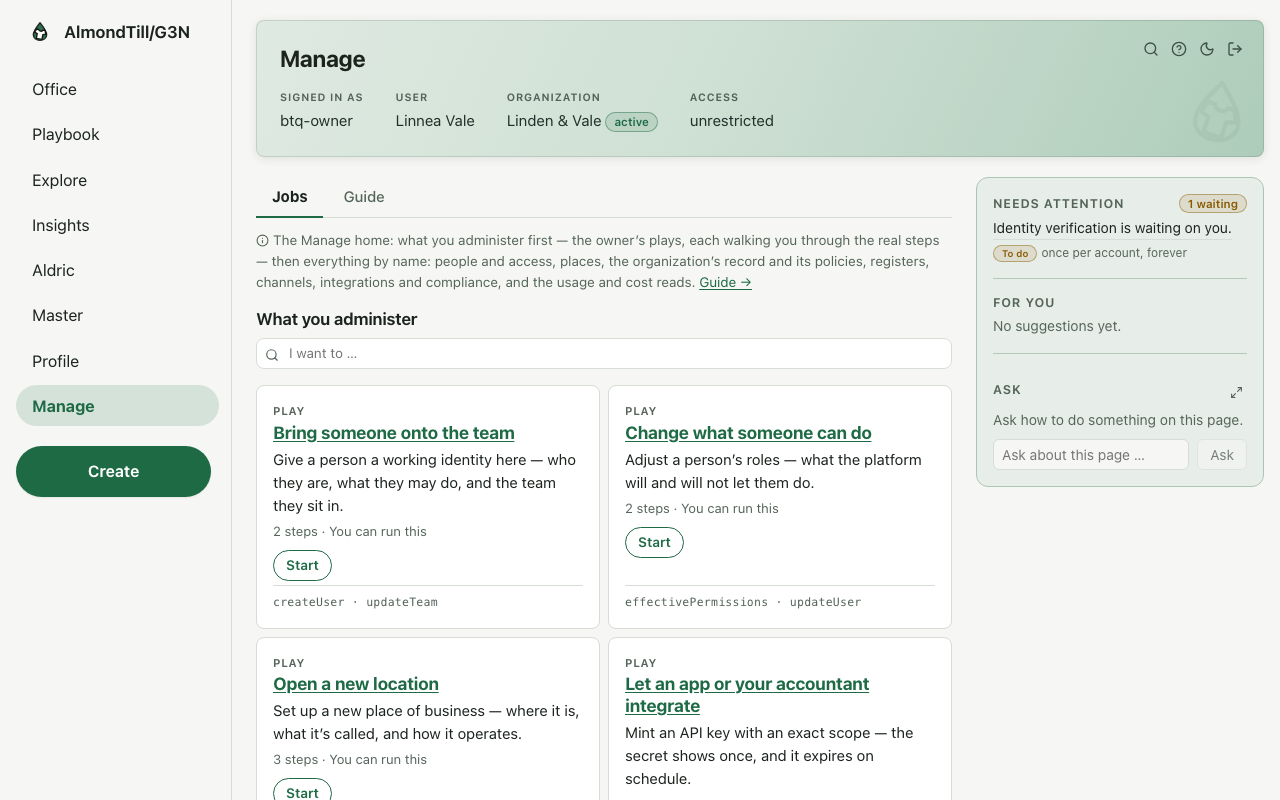
Manage is the organization’s own board: everything about the business that is not a day’s trade.
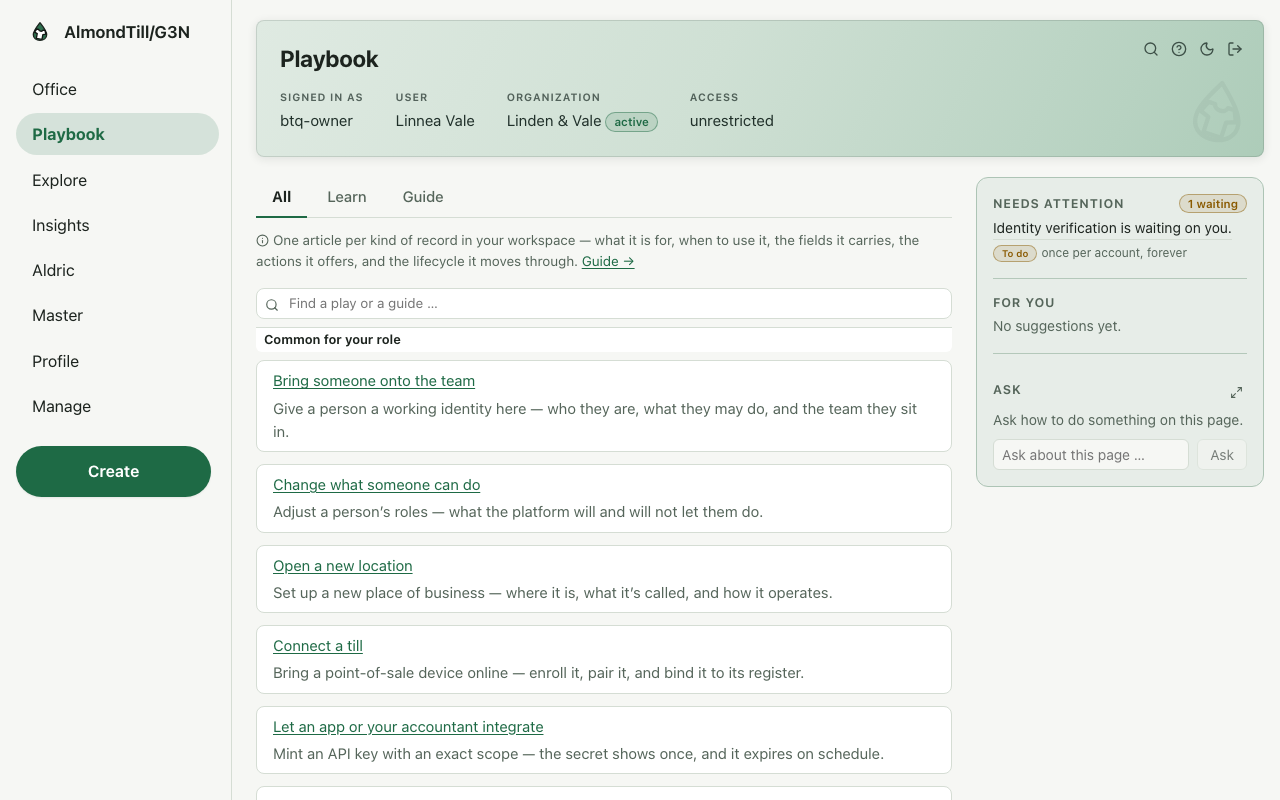
The Playbook is where work starts: every play of the office, shelved by what it is for, each a walk you can follow or learn.
Where you meet it
Everywhere: the rail and the top strip stand on every page, and the right-hand panel follows you.
Try it
- Press each zone on the rail once and read its first page.
- Press ⌘K (Ctrl+K on Windows) and type a word — the search box finds records, pages and plays by name.
- Read the Needs attention panel; press one row and see where it takes you.
3. Lists — finding things
What it is
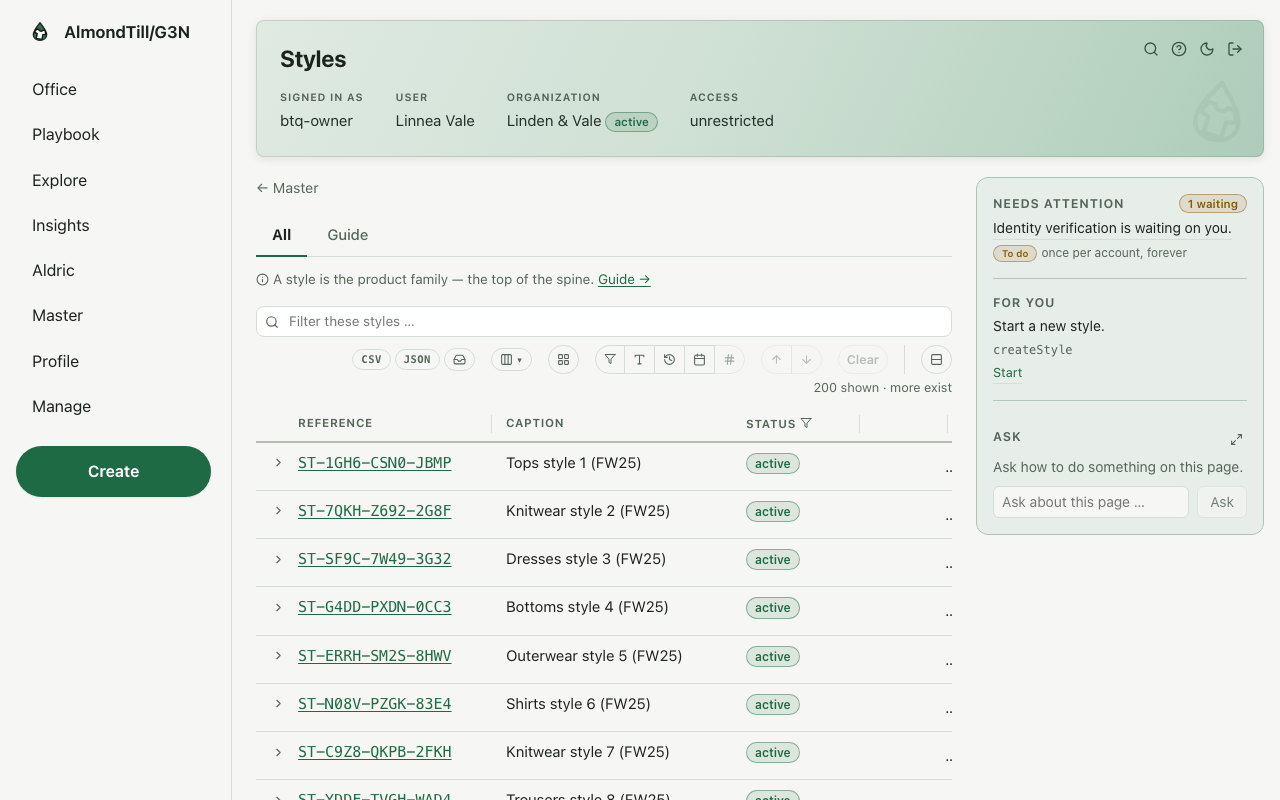
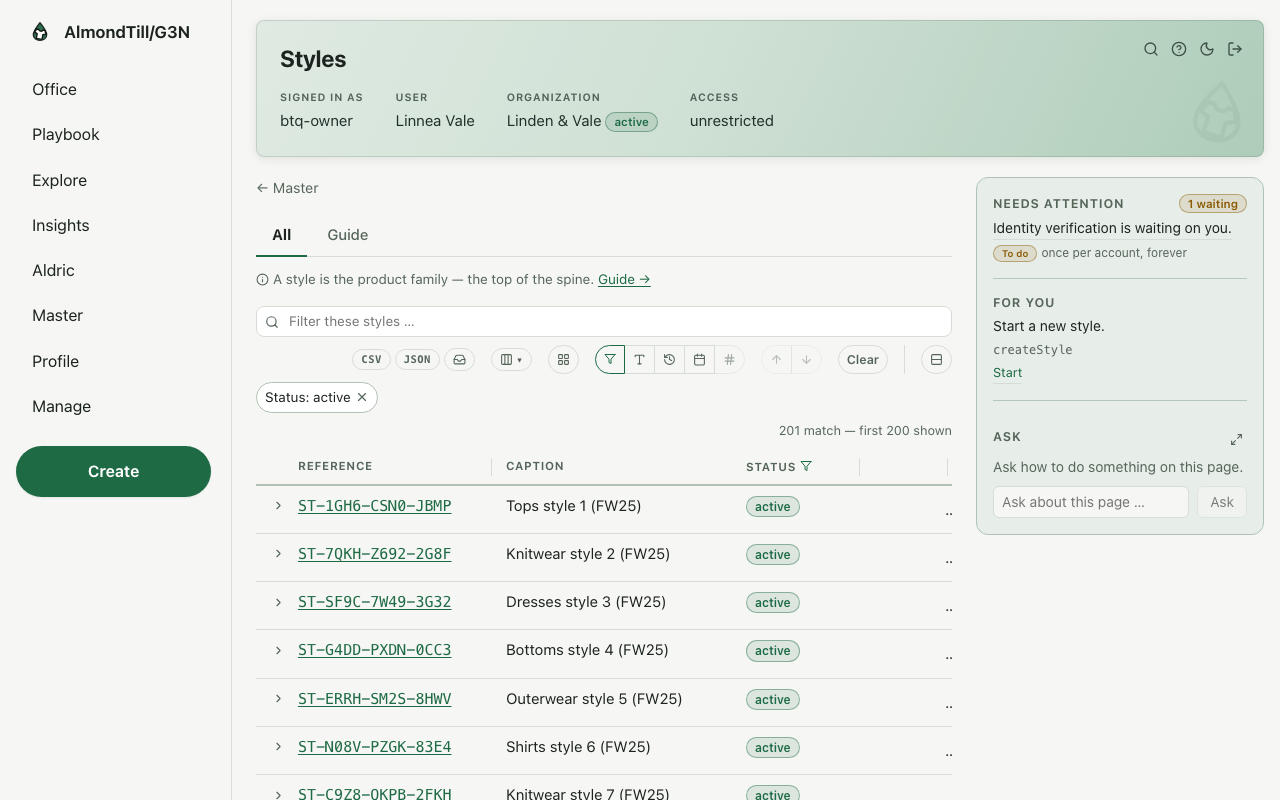
Every family of records has a list page. Above the rows stands the finder — Filter these styles … — which narrows the rows as you type. The funnel beside it opens the filters: a field, a condition, the values; the address of the page carries the filter, so a filtered list can be bookmarked or sent to a colleague. The columns button chooses which columns show. A long list shows a page at a time and a Show more button for the next. A result that offers it can be downloaded as a CSV file.
A sample, walked
The example shop’s styles, as the list opens: every style, the finder above, the funnel and the columns beside it.
The same list filtered to the active styles — the filter rides in the address, so this page can be bookmarked.
Where you meet it
Every family — items, orders, people, prices, tills — and the related records under a record’s page (chapter 4), which arrive already filtered to that record.
Try it
- Open Styles and type three letters into the finder; watch the rows narrow.
- Press the funnel, filter by status, and read the address bar — copy it and open it in a new tab.
- Press the columns button and hide a column you never read; it stays hidden the next time.
4. A record page
What it is
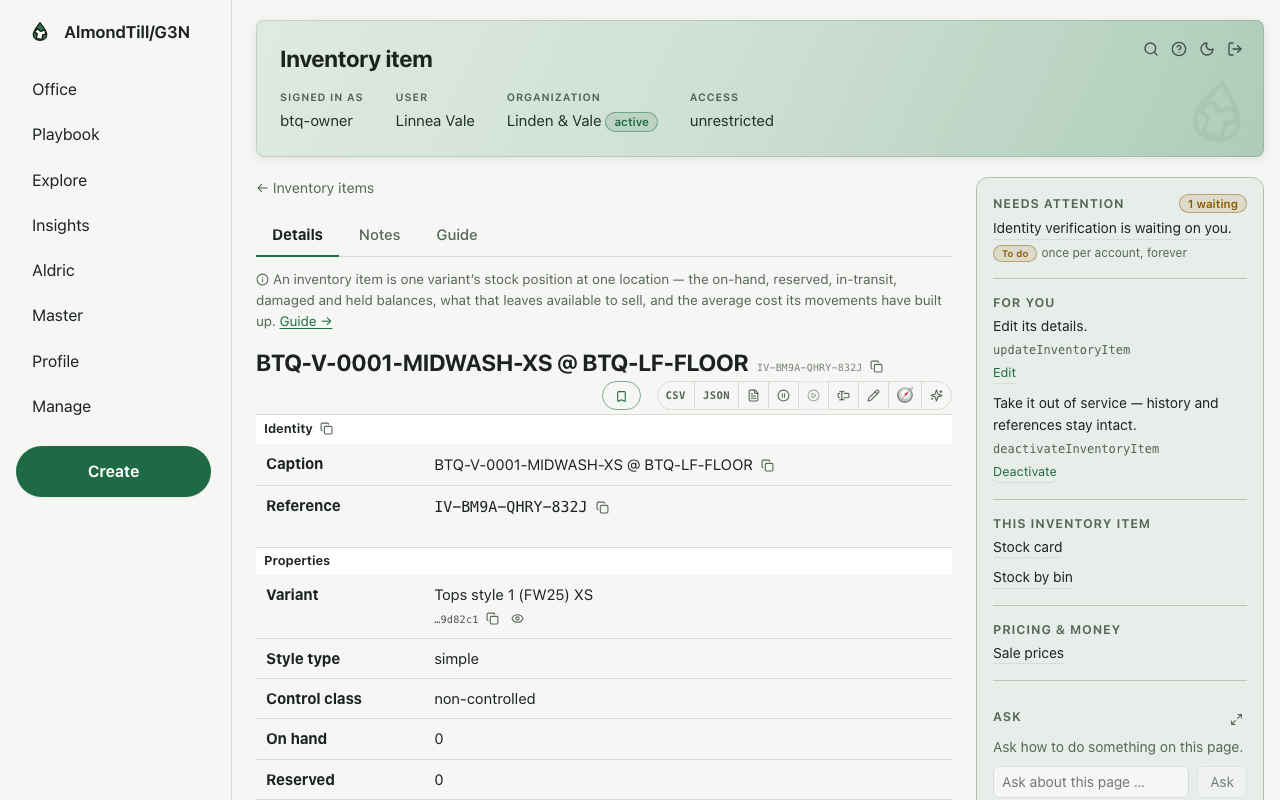
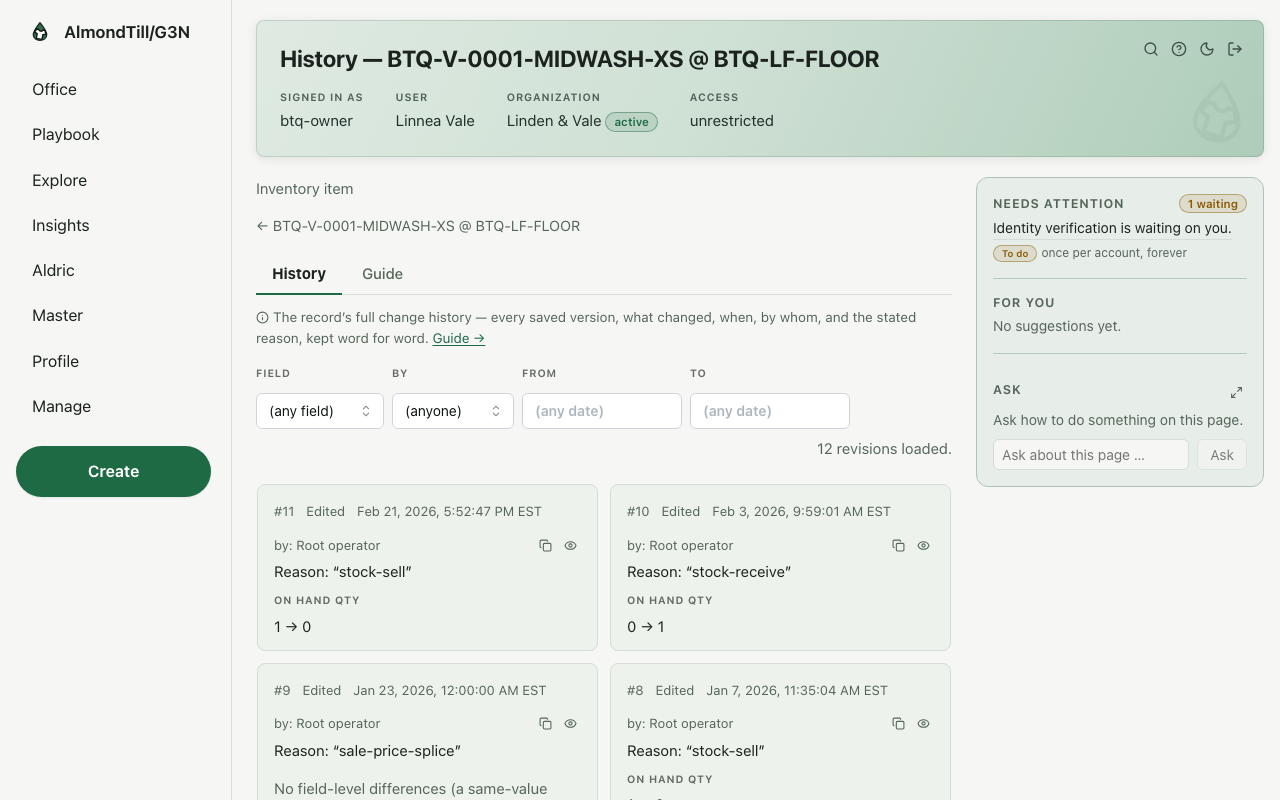
Press a row and the record’s own page opens. The details stand as rows of label and value; the actions the record offers right now stand as verbs — a verb opens its form on the same page, and the address carries the verb, so a half-done action can be reopened. Under the details, the related group lists every other family that points at this record, each a list already filtered to it. The status line carries the revision number and a clock icon: the record’s history, every change with who made it and when. A plan or a report also carries its document, folded under the details.
A sample, walked
One of the example shop’s inventory items: the details, the verbs it offers, the stock card and the related records under it.
The same item’s history: every revision, in order, with the person and the moment.
Where you meet it
Every record of every family. The shape is the same whether it is a style, an order, a person or a till.
Try it
- Open any inventory item and read the details, then the related group under them.
- Press the clock icon on the status line and read the history.
- Press a verb, read its form, and press Cancel — nothing changes until you save.
5. Creating and changing — the wizards
What it is
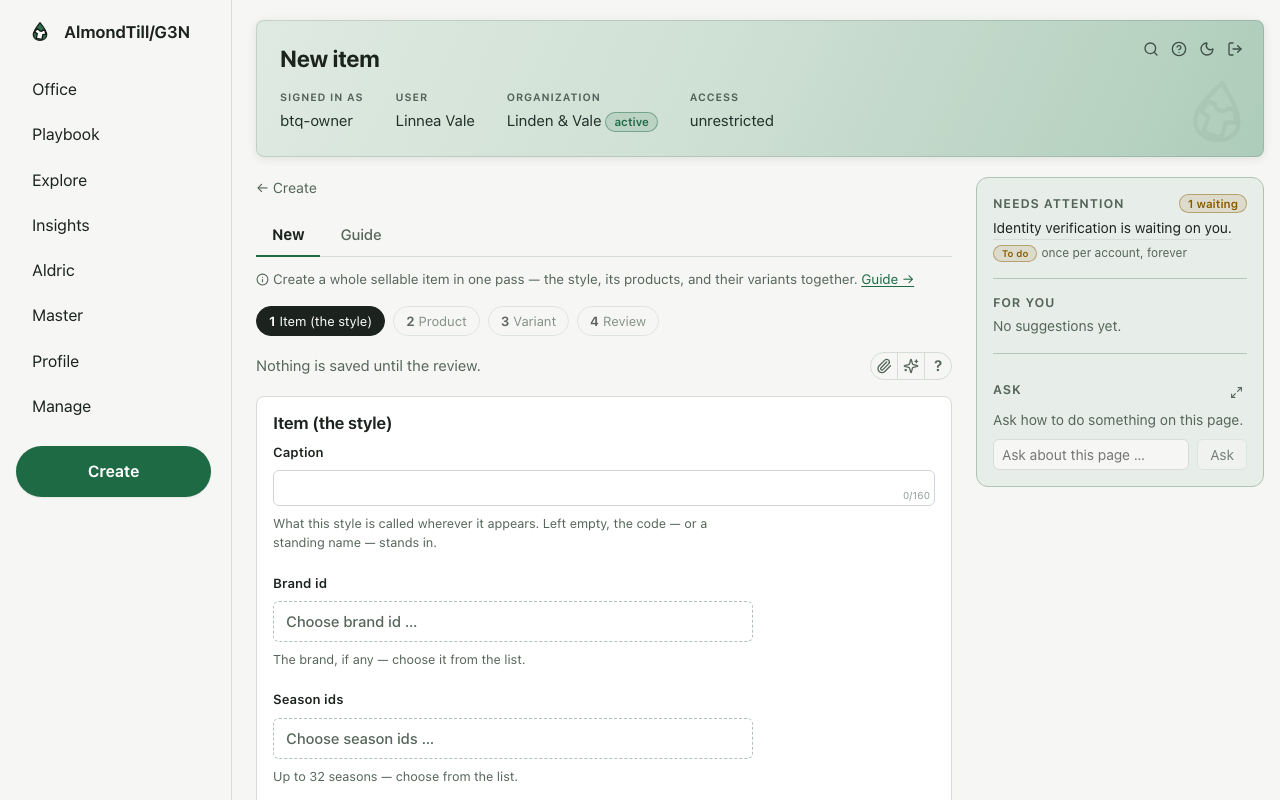
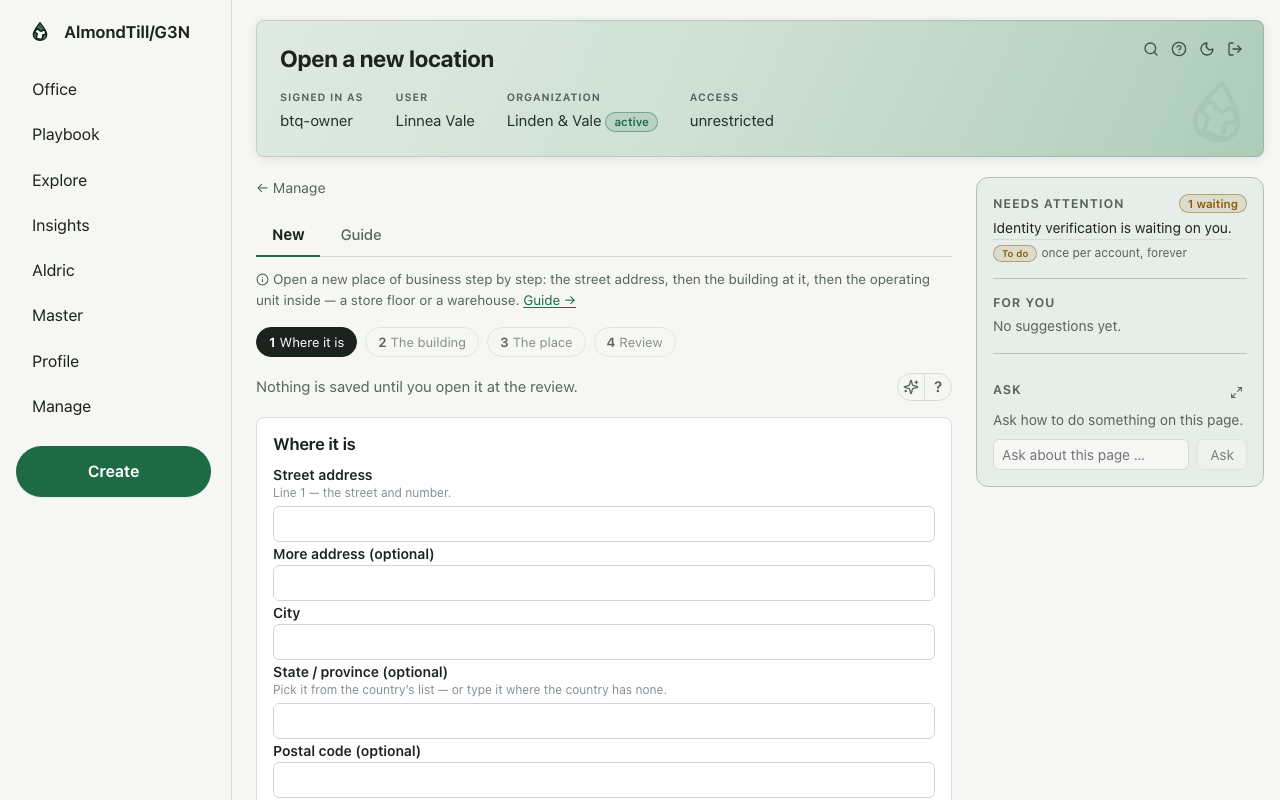
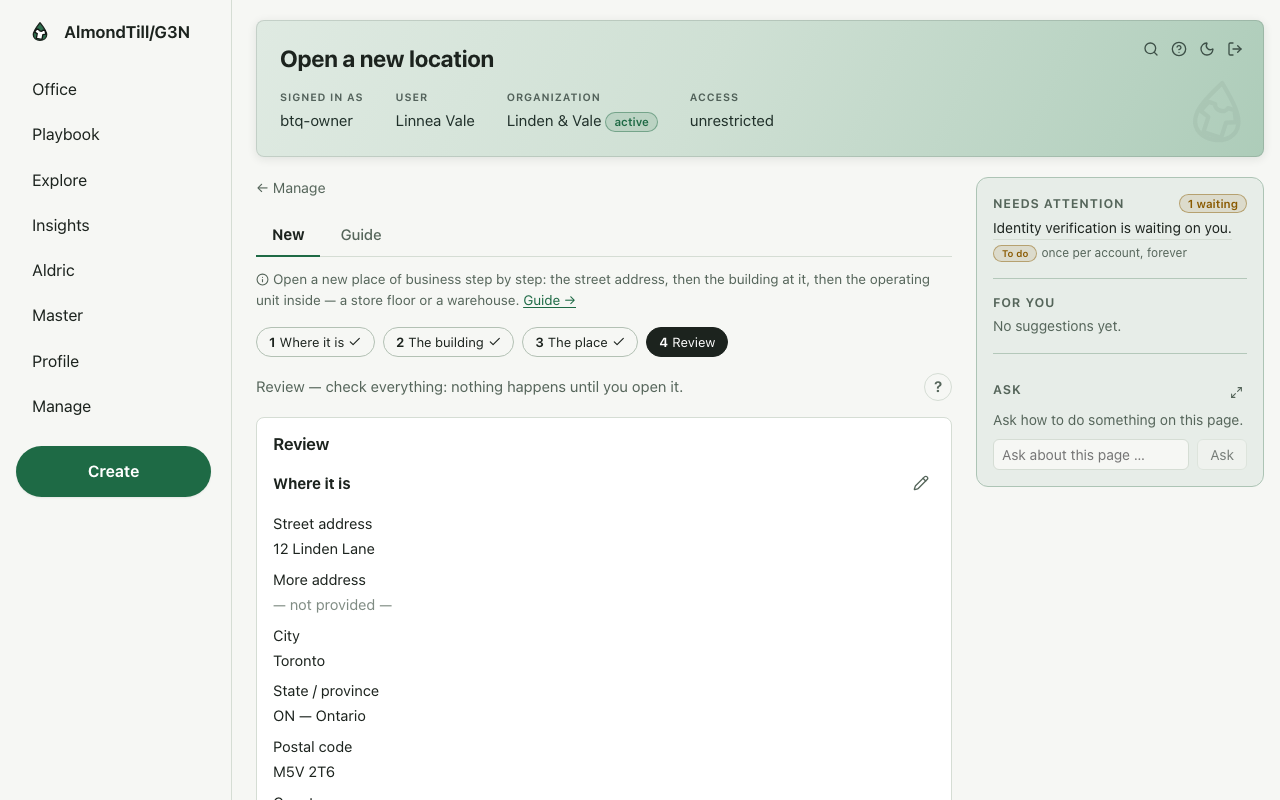
A new record of any weight is made through a wizard: a few pages that each ask one thing, then a review page that shows everything you entered before anything happens. The last button of the pages reads Review before creating (or Review before opening for a location); on the review, a pencil beside each section takes you back to change it, and ✨ Check my entries asks the assistant to read what you entered and say what looks off. Nothing is written until you press the final button on the review. A change to an existing record asks for a reason — optional on most records, required on the ones that matter — which stays in the history.
A sample, walked
The New item wizard, as it opens: the first page asks for the style, the product and the variant in one pass.
Open a location — the first of its pages: where the place is.
The same wizard’s review page, after the pages were filled with sample values for the example shop and Continue was pressed through them. Every section can still be changed; the location is never opened here.
After pressing Continue through the pages and then Review before opening.
Where you meet it
Every New button, the Create button at the bottom of the rail, and the Manage board’s own walks — open a location, bring someone on.
Try it
- Open Create, choose a family, and read the pages without saving.
- Reach the review and press the pencil beside a section; change a value and return.
- Press ✨ Check my entries and read what the assistant says — then leave without the final button.
6. Ask
What it is
The Ask box sits in the right-hand panel on every page. It knows the page you are on — which records it shows, which actions it offers — and it answers a question about how to do something here, with links into the office. Nothing is written when you ask; the answer is metered to your shop in kernels, the unit every assistant call is counted in, and your AI usage page shows every call.
A sample, walked
On the Playbook page the owner asked How do I open a new location for my shop? — the answer, with its links into the office, lands in the thread.
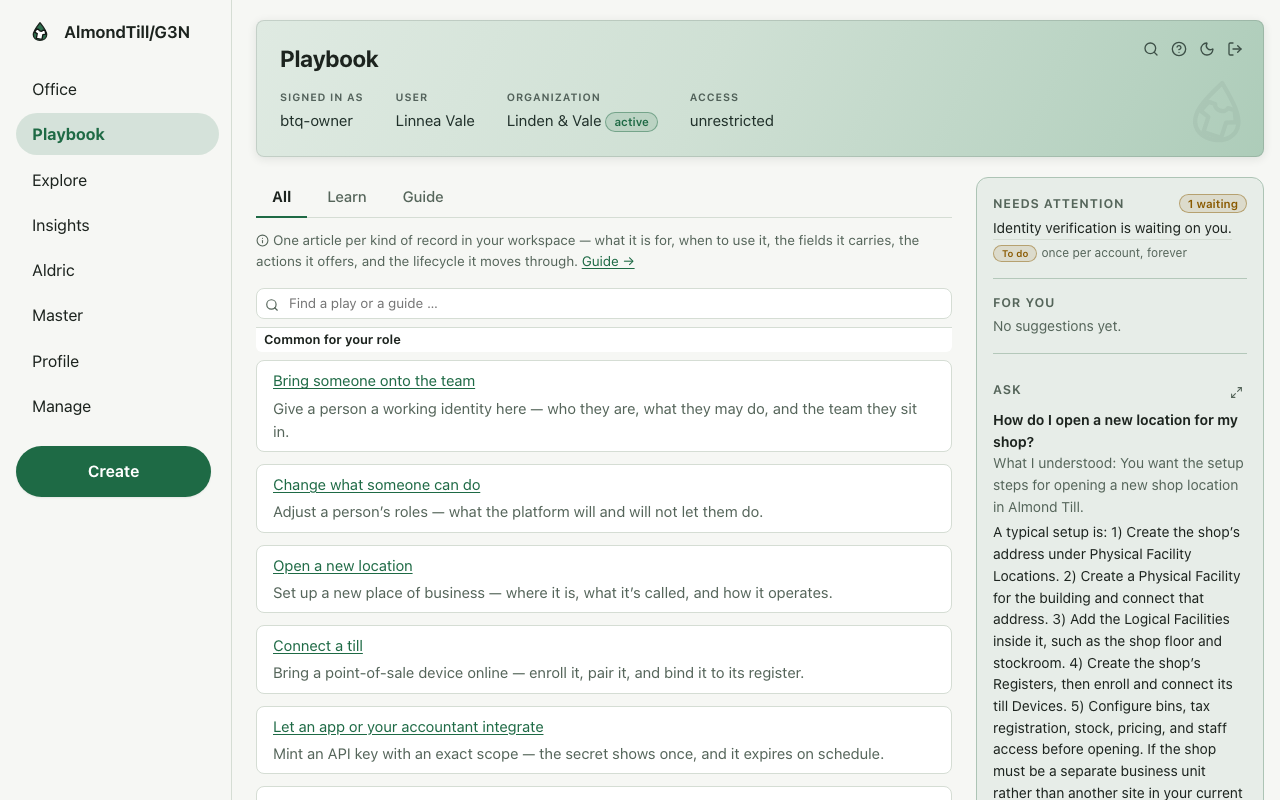
After pressing Ask.
Where you meet it
Every page: the box in the right-hand panel, and its larger view by the expand icon.
Try it
- Open any list page and ask how to filter it.
- Open a record and ask what one of its verbs does.
- Press the expand icon for the larger view; the conversation is the same.
7. Aldric — your assistant
What it is
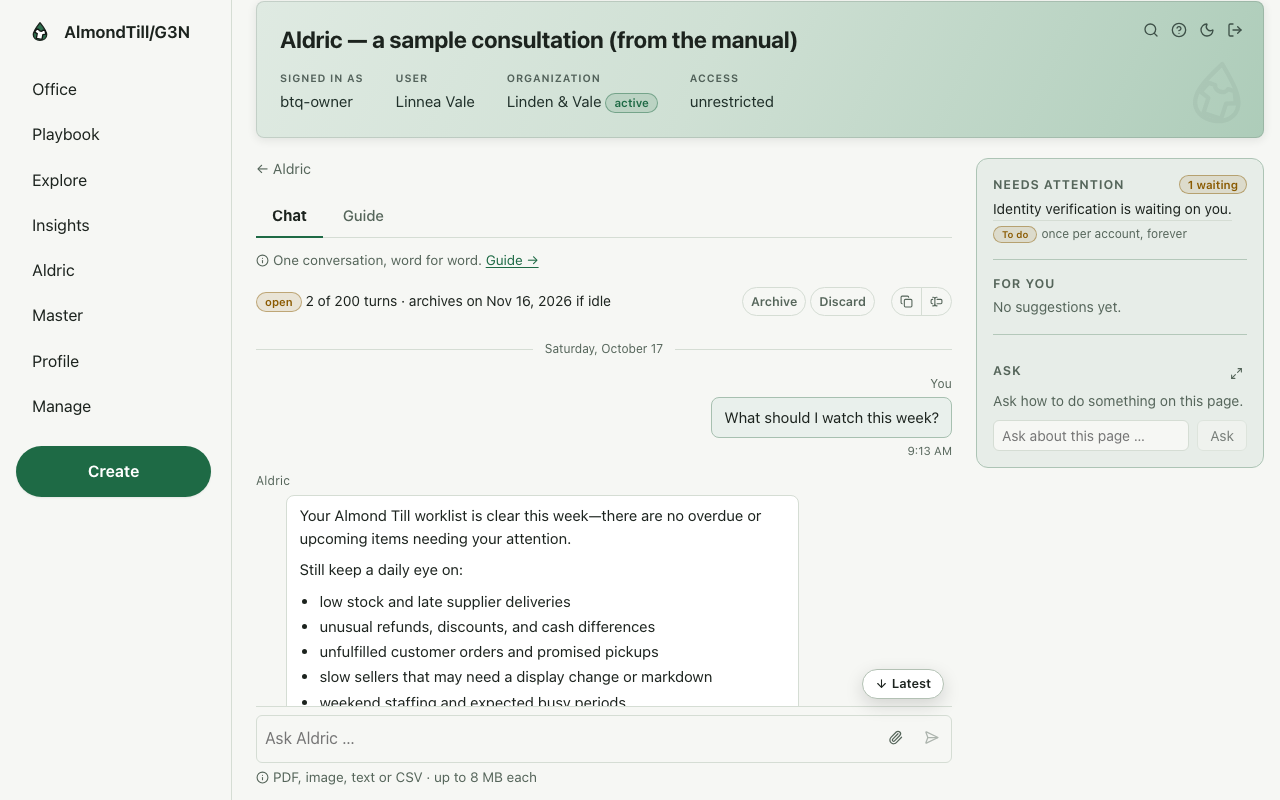
Aldric is the assistant you consult rather than ask in passing. A consultation is a conversation that is kept: you write a question in plain words, Aldric answers, and when the answer is a thing to do, Aldric drafts a plan you can read, take to a scratchpad and run yourself. Aldric may read your records and draft; it never changes a record on its own. Each turn is metered to your shop in kernels.
A sample, walked
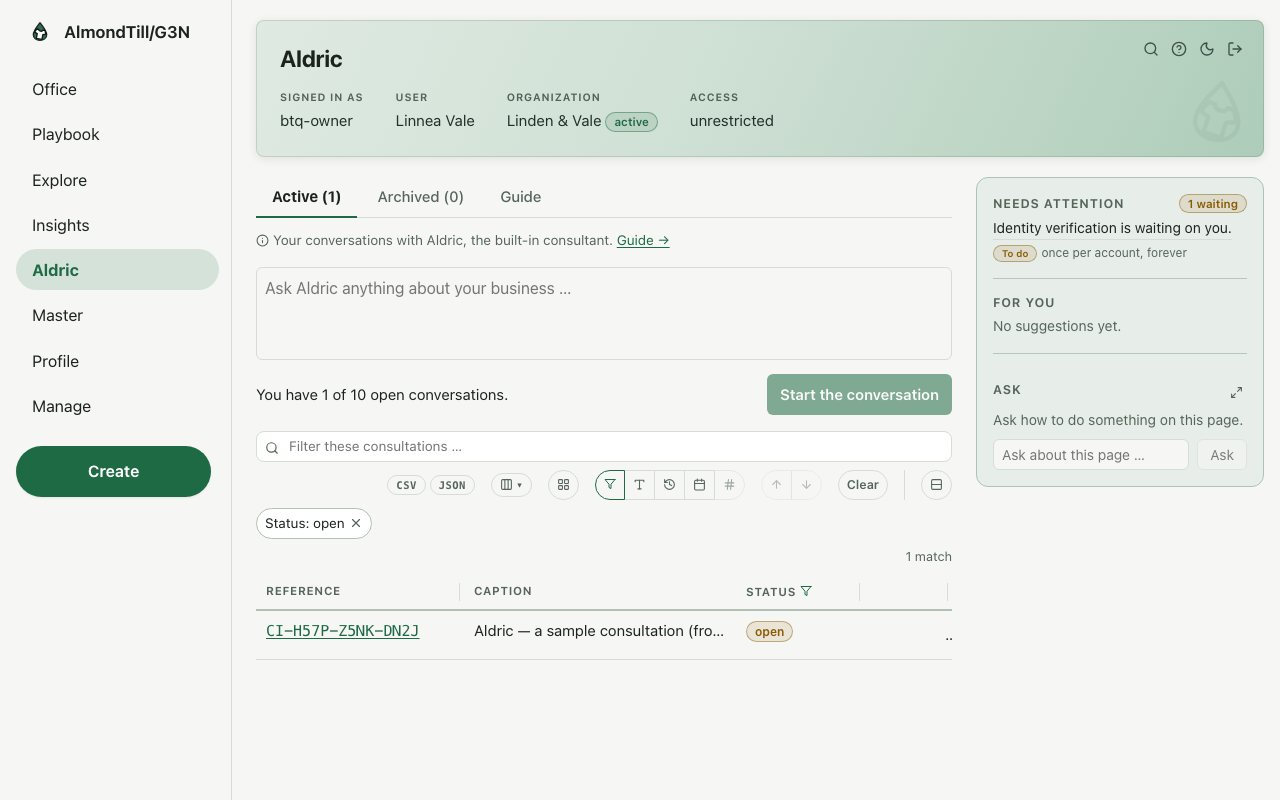
The Aldric page lists the example shop’s consultations: 1 consultation.
The sample consultation — Aldric — a sample consultation (from the manual) — with its one question, What should I watch this week?, and the answer. This consultation is the one record these pages write; it is the example shop’s own and is reused every time the book is regenerated.
Where you meet it
The Aldric zone on the rail, and the Ask Aldric doors on pages where a longer conversation helps.
Try it
- Open Aldric and start a consultation with one plain question about your shop.
- When Aldric drafts a plan, read it step by step before you take it anywhere.
- Archive a consultation you are done with; it stays readable.
8. Explore — drilling down
What it is
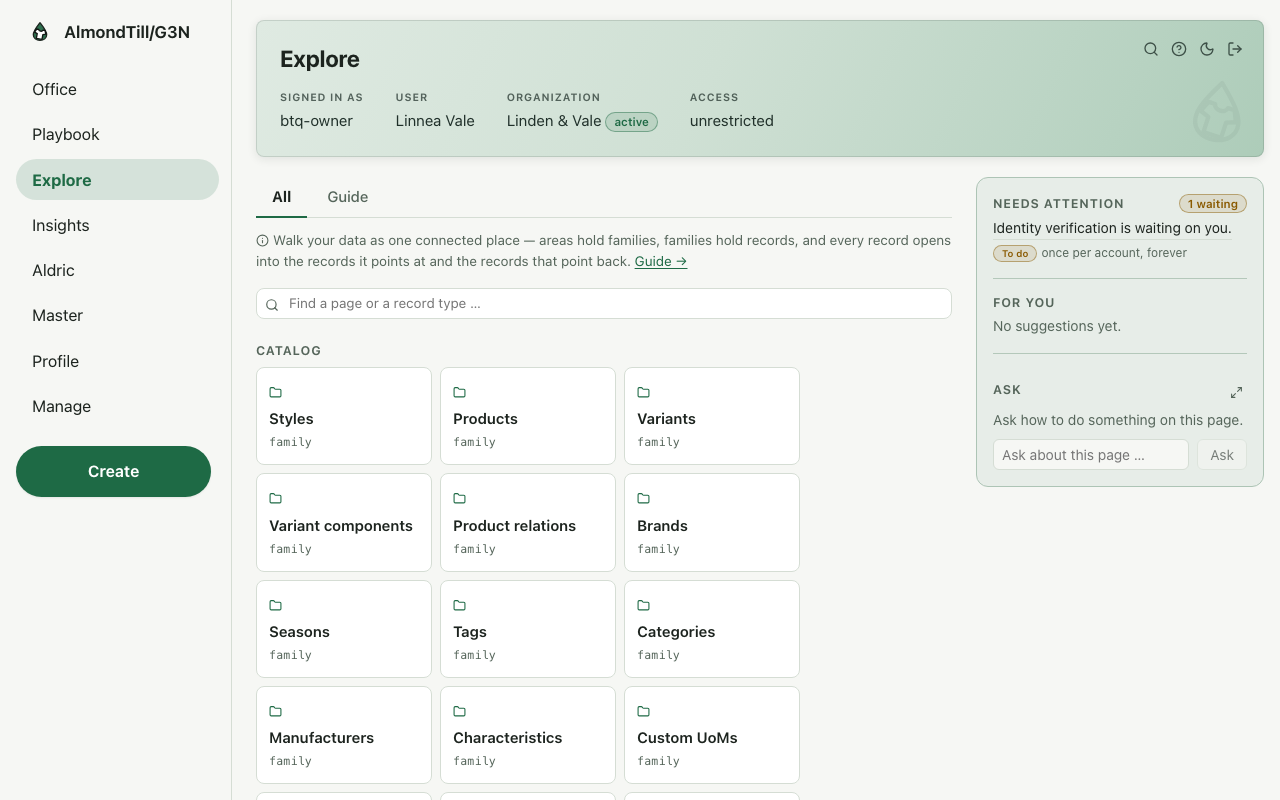
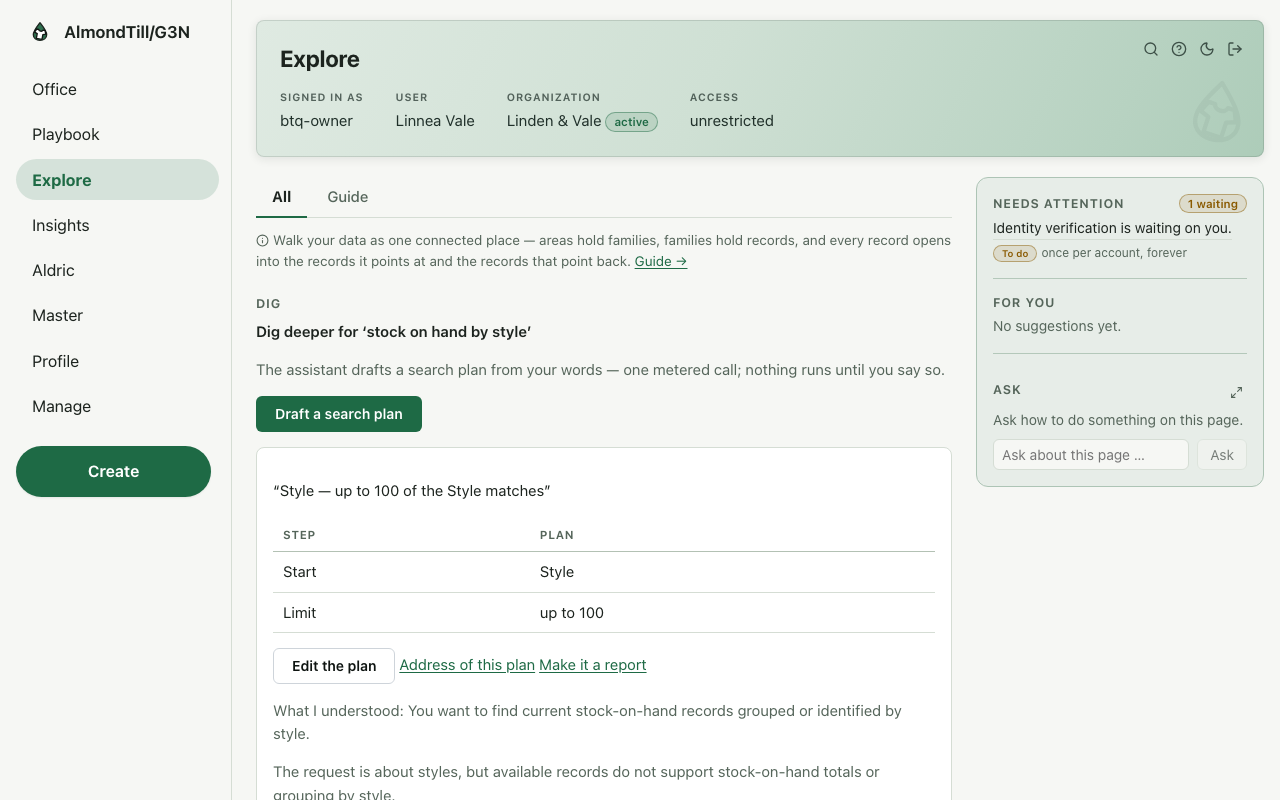
Explore is where you find things across every family at once, and where you drill down. Its three views are Folders, List and Tree: the folders group records by family, the list lays them flat, the tree shows what sits under what. The Dig door at the top takes a question in plain words — what you want to see, grouped how — drafts a search plan from them, and hands the plan to the report builder, where you can change it and run it.
A sample, walked
Explore as it opens for the example shop: the Dig door first, then the records by family.
The Dig door handed the words stock on hand by style: the drafted plan stands ready to be changed or run.
Where you meet it
The Explore zone on the rail; the search box’s last row, which hands your words to the Dig door; the Dig links on list pages.
Try it
- Open Explore and switch between Folders, List and Tree.
- Type a question into the Dig door and read the plan it drafts.
- Press Run on a drafted plan and read the result; nothing is saved until you say so.
9. Insights — dashboards and ready-made reports
What it is
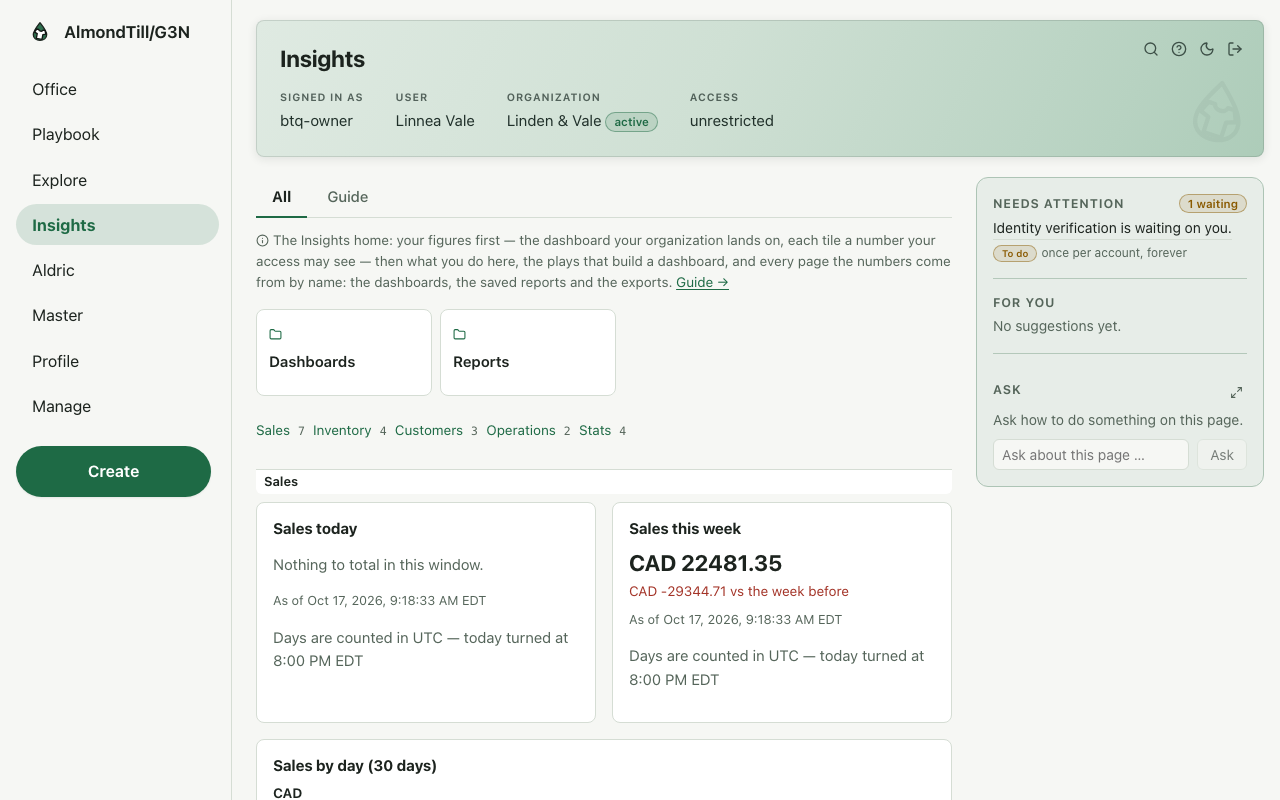
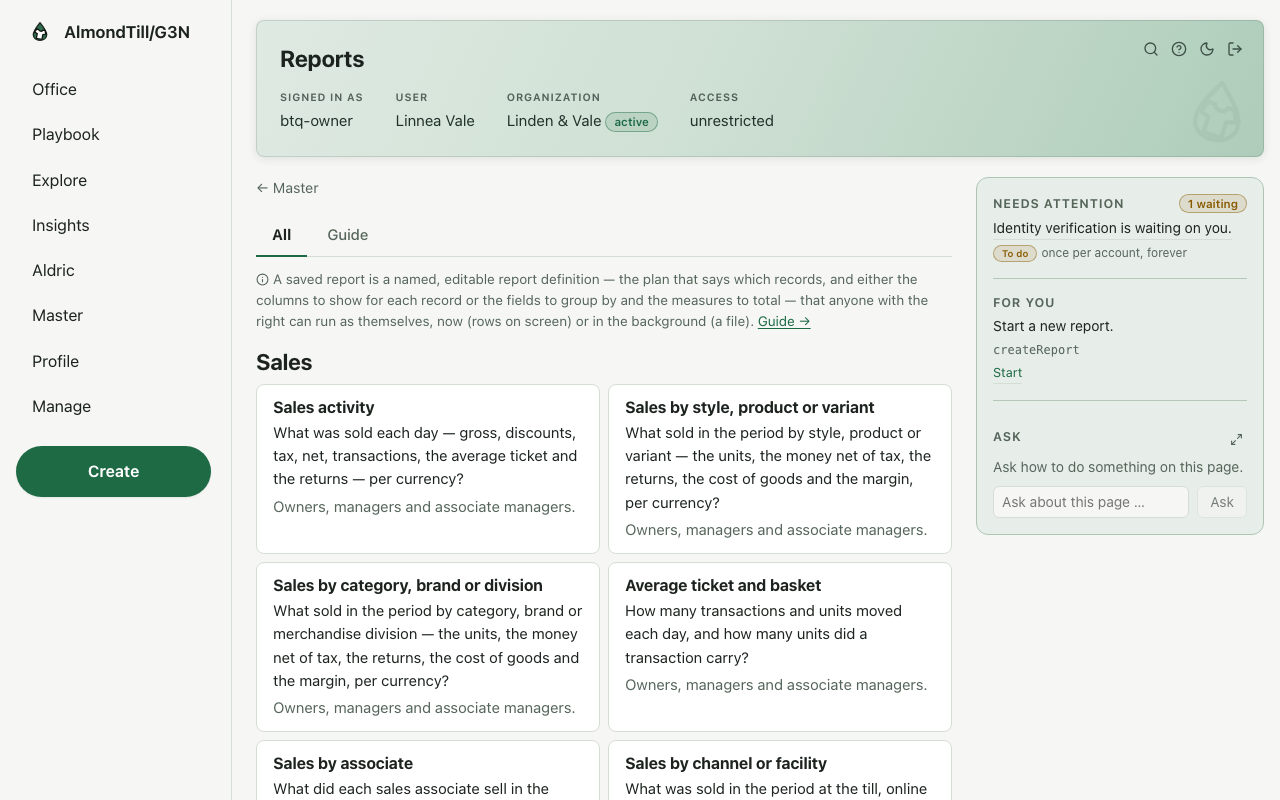
Insights gathers the two ways of reading your figures. A dashboard is a page of tiles you lay out yourself — the owner’s manual walks building one in its first chapter. The reports room holds the ready-made reports, in groups, each answering one question of the trade: the example shop has 24 ready-made reports, every one open to the owner. A report page asks for its period and its lens, runs on Run, and shows the result in a sheet you can download as a CSV file or save under a name to run again.
A sample, walked
The Insights zone: the dashboards and the reports room, one door each.
The reports room, with the groups and their reports.
The Sales activity report after Run was pressed with this week’s period: the result sheet in its pop-up, with Download as CSV above the table.
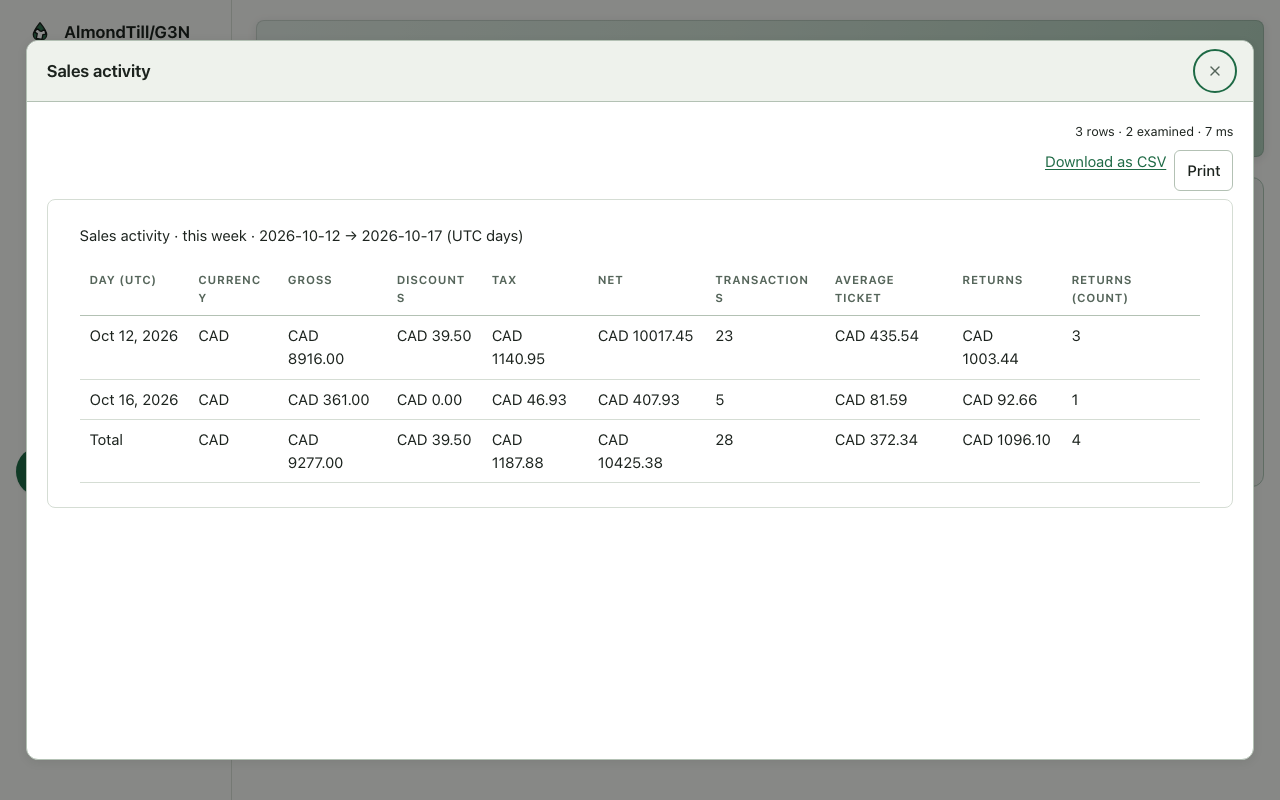
After pressing Run.
Where you meet it
The Insights zone on the rail, the dashboards on the office home, and the Dig door of Explore, which hands a drafted plan to the same report builder.
Try it
- Open the reports room and run Sales activity for last month.
- Download the result as a CSV file and open it in your spreadsheet.
- Save the run under a name and run it again from the saved runs.
10. The Guide and the Handbook
What it is
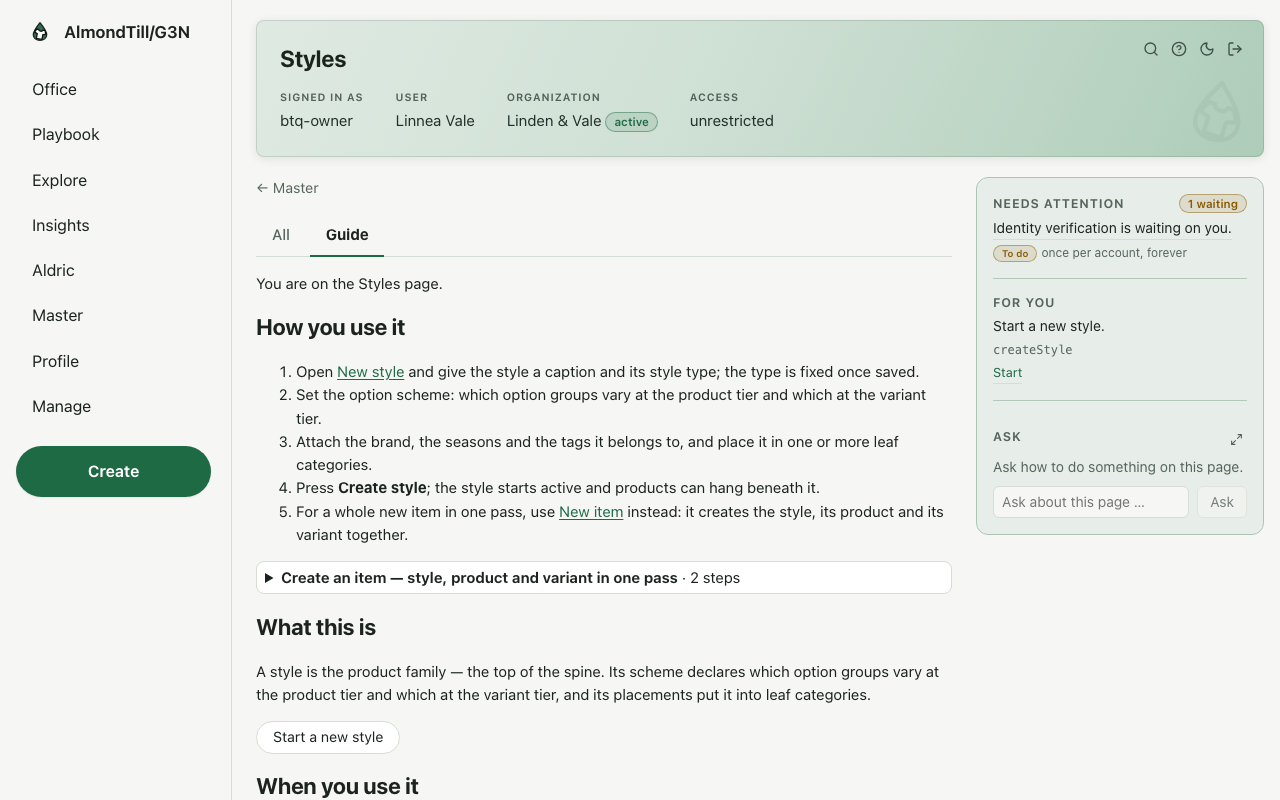
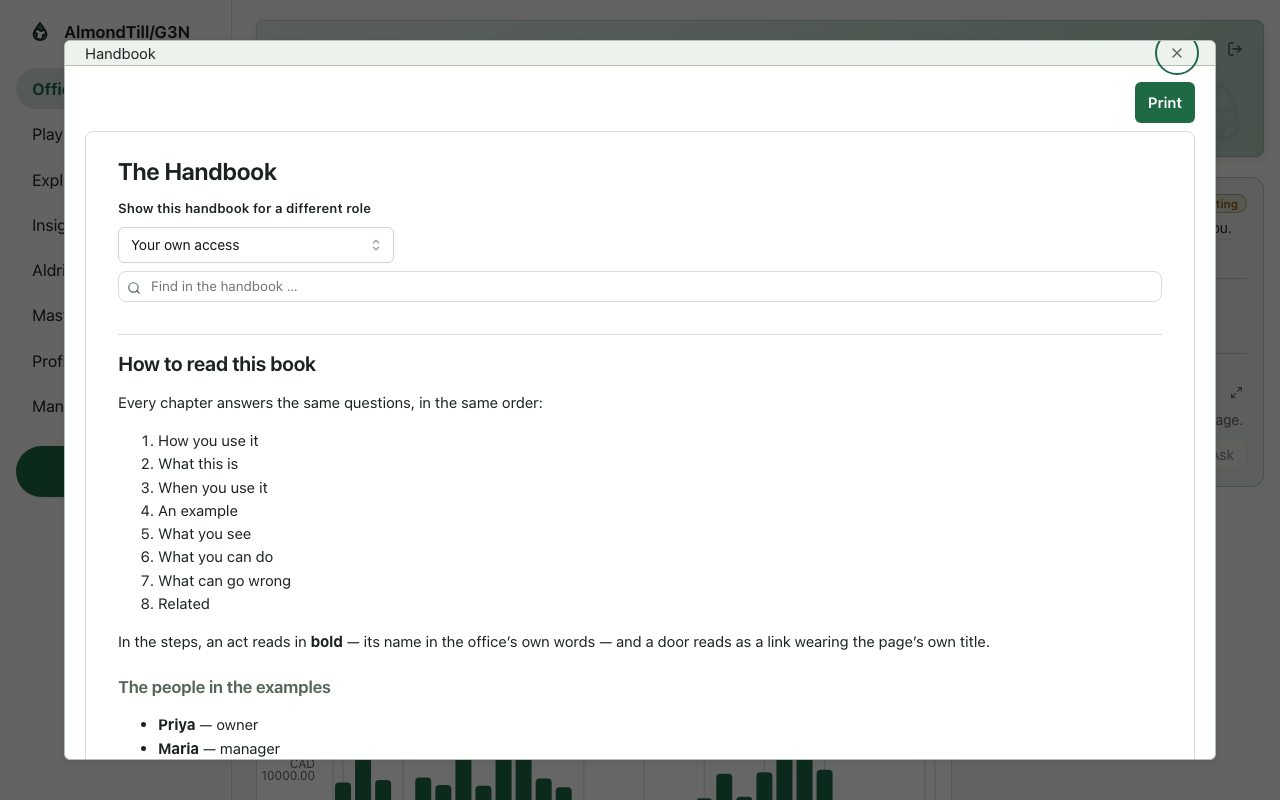
Every page has a Guide tab: what the page is for, when to use it, how it works, an example — written for that page. The Handbook, opened from the book icon at the top, is the whole office in one book, opened on the page you are looking at; it is printed with the browser’s own print command. Neither changes a record: both are reading matter, open beside your work.
A sample, walked
The Guide tab on the Styles page.
The Handbook, opened over the office home.
Where you meet it
Every page carries the Guide tab; the Handbook icon stands in the top strip on every page. Both read the page you are on, so their words match what is in front of you.
Try it
- Open any page and press its Guide tab; read the example at the end.
- Press the Handbook icon and find the page you came from.
- Print the Handbook with your browser’s print command.
11. The courses
What it is
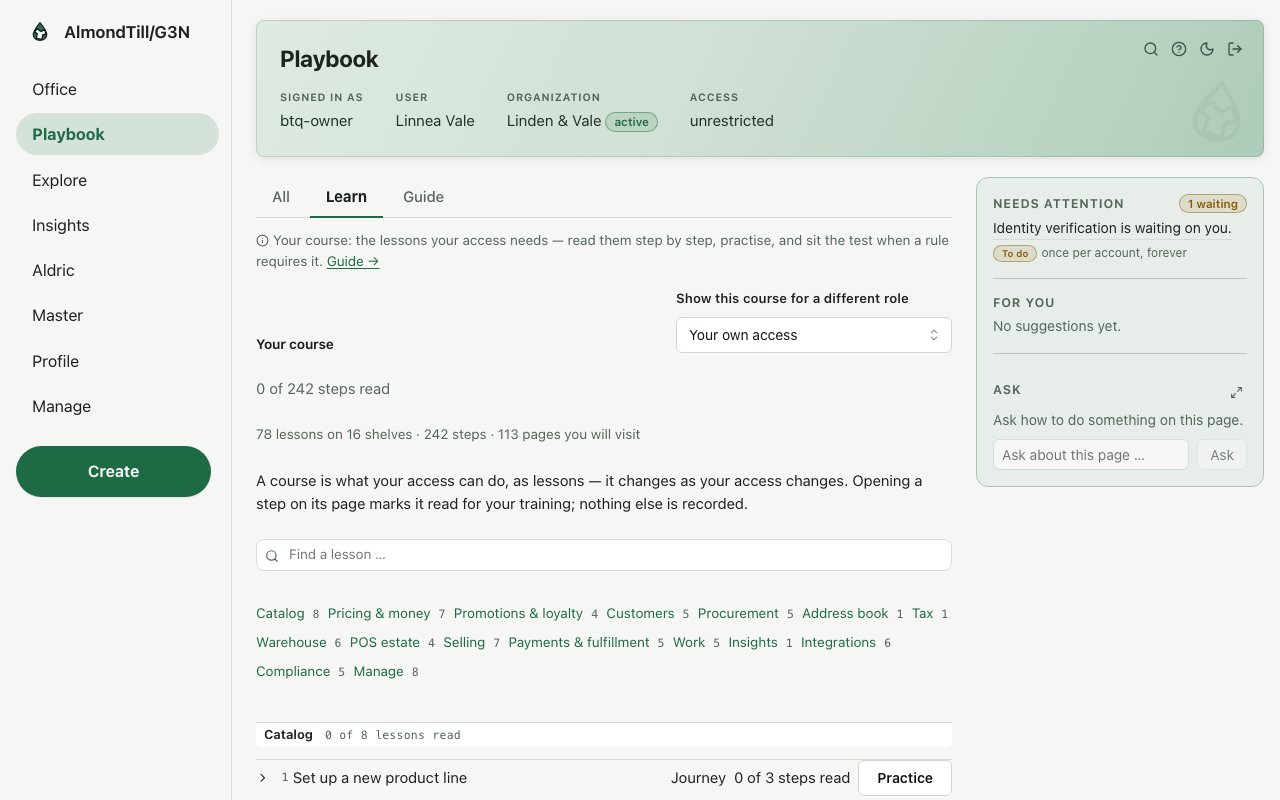
The Playbook’s Learn view turns the plays into courses: every lesson is a play, read step by step, with Show me links that walk the real pages read-only, Ask the tutor for a question about the lesson, and a short practice at the end that certifies you on it. Your standing — the steps read, the lessons certified, the ones due — stands at the top.
A sample, walked
The lesson Build a dashboard, open on the Learn view: the steps, the tutor beneath them, the door to the play’s own page.
Where you meet it
The Learn tab on the Playbook, and the training rows in the Needs attention panel when a lesson is due.
Try it
- Open the Playbook, press Learn, and open one lesson.
- Press a Show me link and follow the walk; nothing is done for you.
- Take the practice at the end and read your standing afterwards.
- Read your standing at the top of Learn a week later: the lessons certified, and any that are due.
12. Your profile
What it is
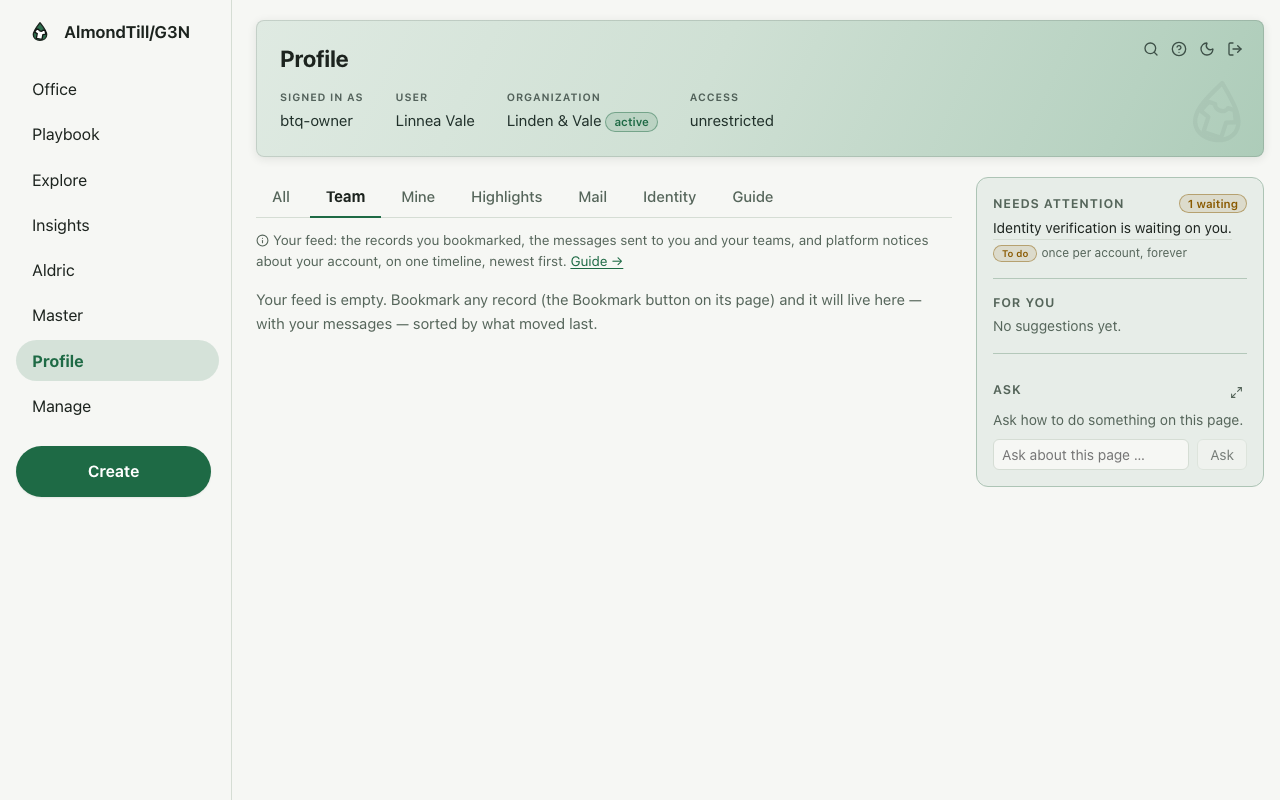
The Profile page is you: your own details and roles, your team — the example shop’s team is 11 people — your highlights, and your mail. The light-and-dark switch in the top strip changes the whole office at once and is remembered. Notifications arrive as short messages at the bottom of the page and as the count on the Profile entry of the rail. Sign out everywhere ends every signed-in session of yours, this one included.
A sample, walked
The team tab of the owner’s profile: everyone with a seat, with their roles.
Where you meet it
The Profile zone on the rail, and the top strip on every page — the switch and the sign-out door.
Try it
- Open Profile and read your roles; then open the team tab.
- Press the light-and-dark switch and watch the page change at once.
- Read the Sign out everywhere section — use it when a device of yours goes missing.