On this page
The receiver’s manual
This manual is for the person in the back room who receives, moves and counts stock. Read it with the office open in another window: every chapter is one thing you will actually do, walked step by step, with a screenshot of each page you will see — and where a step belongs to someone else, the walk says so.
What you need. A receiver’s sign-in to the office, and a few minutes per chapter. Nothing here changes your records until you press a save button yourself; the walks show where things are and what happens when you act.
The example shop. The screenshots and the figures come from Linden & Vale — a fictional Toronto boutique with a year of trade, born for these pages. Every figure below was read from its own records on 17 October 2026; nothing is typed by hand. Your own shop’s pages will show your own figures in the same places.
1. Receive an arrival — with a line held back
In the office this is the play Stock arrives — from purchase order to the shelf — How goods enter your business on paper and in fact: you order from a vendor, the order is approved and issued, and when the boxes arrive a receipt records exactly what came in — your stock figures move only when the receipt posts.
The mechanisms in this chapter: Lists — finding things · A record page
What you will do
The purchase order is the manager’s; the arrival is yours. Start a receipt against the issued order, capture the quantities that actually came — a wrong item goes on hold rather than on the shelf — and post the receipt. Your stock figures move only when it posts; a mistaken receipt cancels instead.
The walk
This walk starts wherever you are in the office.
Step 1. Not yours — Raise the purchase order is a manager’s step.
Step 2. Not yours — Submit, approve, and issue it is a manager’s step.
Step 3. The receipt is the arrival record — what actually came, against which order lines. Start a receipt for the order and capture the quantities that arrived. Open Receipts.
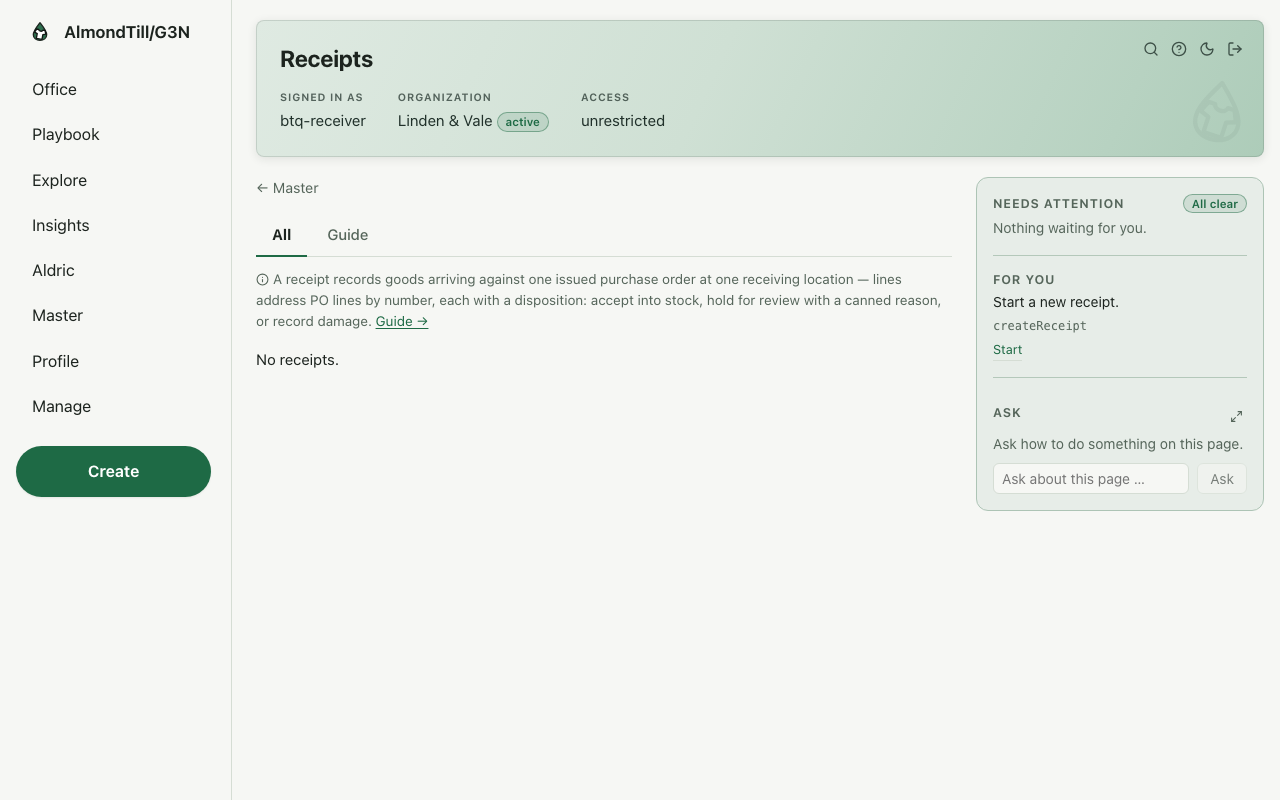
Step 4. Posting moves your stock figures — until then nothing is on hand; a mistaken receipt cancels instead. Post from the receipt page once the quantities are checked. Open Receipts.
What you see
Last month 26 deliveries reached the example shop’s back room. Its Receipts page is empty all the same — its deliveries were booked straight into stock without a purchase order — so the receipt you see here will be your own.
Try it
- Open Receipts and read last week’s; open one and read its lines against the order.
- Start a receipt against an issued order, capture the quantities, and put one line on hold with its reason.
- Post it, and open the stock card of one line to read the on-hand figure move.
Where to learn more
- The receipt record and its operations: Receipt; the purchase order: Purchase order.
- The same walk as the office runs it: Stock arrives — from purchase order to the shelf.
- Your course lists the tasks you can do end to end; this one is walked here as your part.
2. Move six units from the back room to the floor
In the office this is the play Move stock between locations — How stock travels between your locations without losing custody: a transfer names the lines up front, submitting reserves them at the source, shipping carries them at their book value, and receiving lands them — with every shortfall or surplus disposed by name, never silently.
The mechanisms in this chapter: Lists — finding things · A record page
What you will do
Compose the transfer — which items, how much, from where to where — submit it so the stock is set aside at the source, ship it, receive what lands, and close it. Anything missing or extra is disposed by name — loss, damage, found, scrap, or returned — so the books never drift silently.
The walk
This walk starts wherever you are in the office.
Step 1. The transfer is the move’s paper: which items, how much, from where to where — fixed before anything moves. Open Transfers and create one; pick the two locations and the lines. Open Transfers.
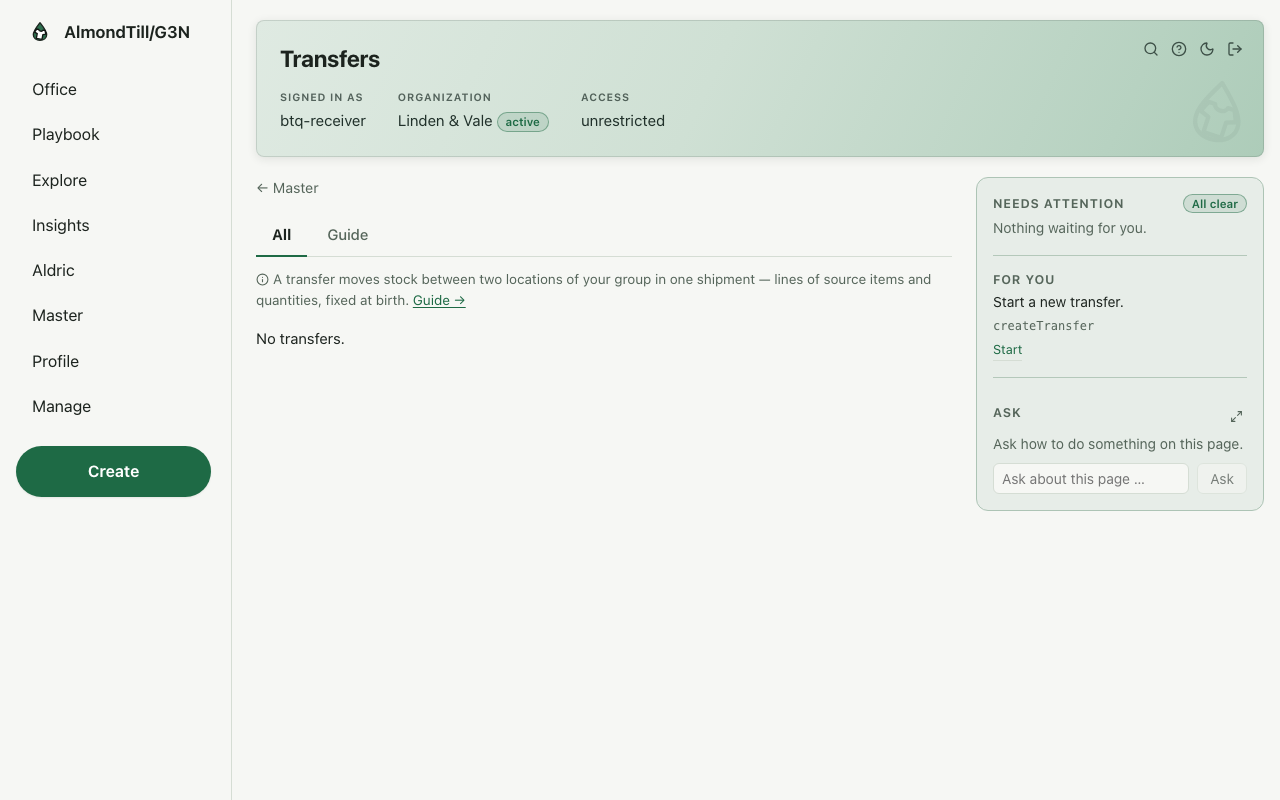
Step 2. Submitting sets the stock aside at the source so it cannot be sold out from under the move; a same-place move completes right here. Submit from the transfer page when the lines are right. Open Transfers.
Step 3. Shipping marks the goods as on the road, carried at their book value until they land. Ship from the transfer page when the goods leave; the expected arrival may ride along. Open Transfers.
Step 4. Receiving records what actually arrived — on hand, or held for review; partial arrivals are normal, receive again as more lands. Receive on the transfer page, line by line. Open Transfers.
Step 5. A fully-landed move closes; anything missing or extra is disposed by name — loss, damage, found, scrap, or returned — so the books never drift silently. Close from the transfer page; a disputed move offers resolve instead. Open Transfers.
What you see
Last month the floor item of Tops style 1 (FW25) recorded 0 movements; a transfer that lands on the floor is one of them. The example shop’s Transfers page is empty — its history moved no stock between locations — so the transfer you see here will be your own.
Try it
- Open Transfers and create one from the back room to the floor with one line of six.
- Submit it, ship it, and receive it; read the stock card of the item at both locations.
- Close it, and read the transfer’s page — every step with its moment.
Where to learn more
- The transfer record and its operations: Transfer.
- The same walk as the office runs it: Move stock between locations.
- The course in the office: on the Playbook, open Learn and the lesson Move stock between locations.
3. Capture the Tuesday count
In the office this is the play Count the shelves against the books — How the books stay honest: a count freezes a location’s lines, the counter works blind against the shelves, captures record what was physically found, and posting moves the books by exactly the differences — no more, no less.
The mechanisms in this chapter: Lists — finding things · A record page
What you will do
Set up the count for the location, start it so the shelf list freezes and the expected figures hide, and capture what you physically find, line by line — an explicit zero is a real answer, and a re-count overwrites while the count runs. Posting the differences is the manager’s.
The walk
This walk starts wherever you are in the office.
Step 1. The count names its location and why it is being taken — wall-to-wall, a scheduled cycle, or a spot check. Open Stock counts and create one for the location. Open Stock counts.
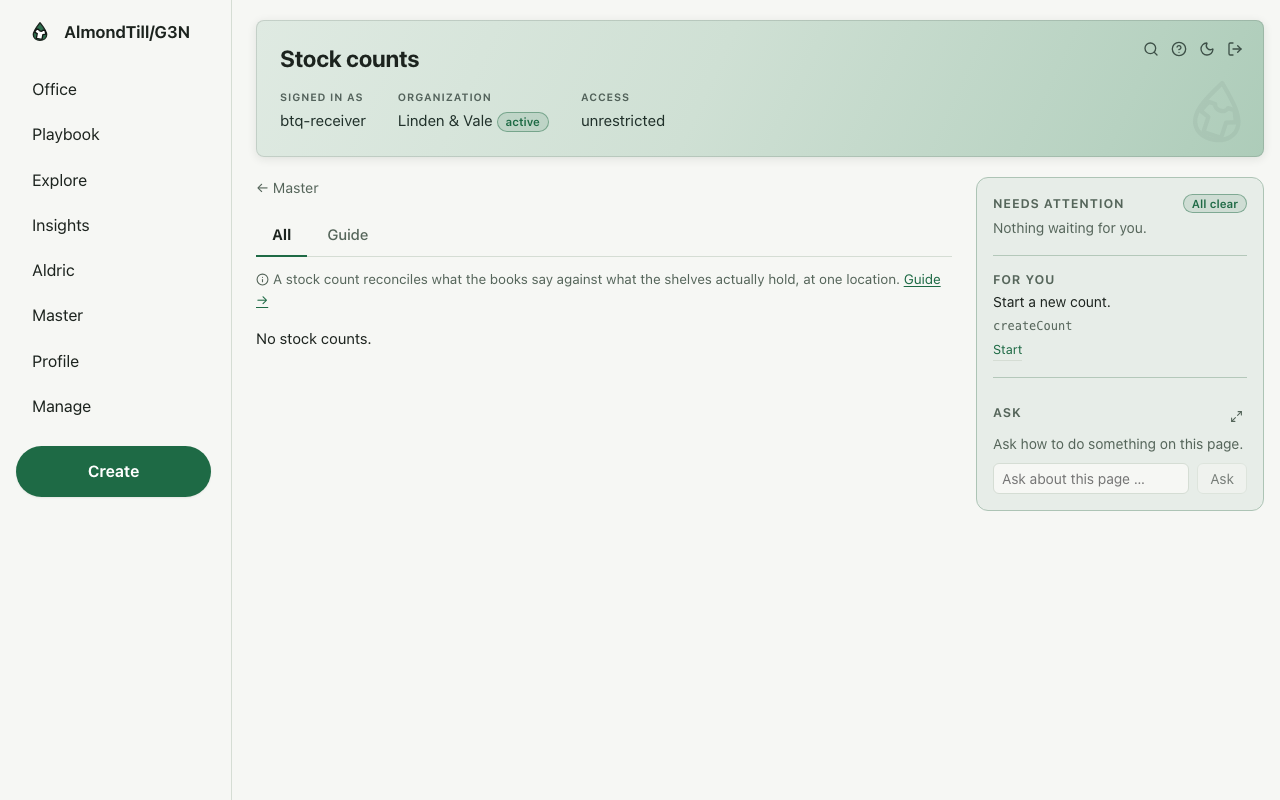
Step 2. Starting freezes the shelf list into concrete lines and hides the expected figures — an honest count is a blind count. Start from the count page when the counters are ready. Open Stock counts.
Step 3. Each capture records the physically-counted quantity — an explicit zero is a real answer; re-counts overwrite while counting. Capture quantities on the count page, line by line. Open Stock counts.
Step 4. Not yours — Post the differences is a manager’s step.
What you see
The example shop is Linden & Vale; a count is blind — the expected figures hide while you capture — and the differences post only when a manager says so.
Try it
- Open Stock counts and create a cycle count for one category at the back room.
- Start it and read the count’s page: the lines, without their expected figures.
- Capture two lines, re-count one, and read the count — ready for the manager to post.
Where to learn more
- The count record and its operations: Count.
- The same walk as the office runs it: Count the shelves against the books.
- Your course lists the tasks you can do end to end; this one is walked here as your part.
4. Stock a new item at the location
In the office this is the play Stock an item at a location — Give a variant its stock identity at a location, book stock in against a purchase as it arrives, and check that the books add up.
The mechanisms in this chapter: Lists — finding things · A record page
What you will do
Give a variant its stock identity at your location, book stock in against a purchase as it arrives, and check that the item’s ledger and its balances add up.
The walk
Where it starts: the office’s Inventory items page.
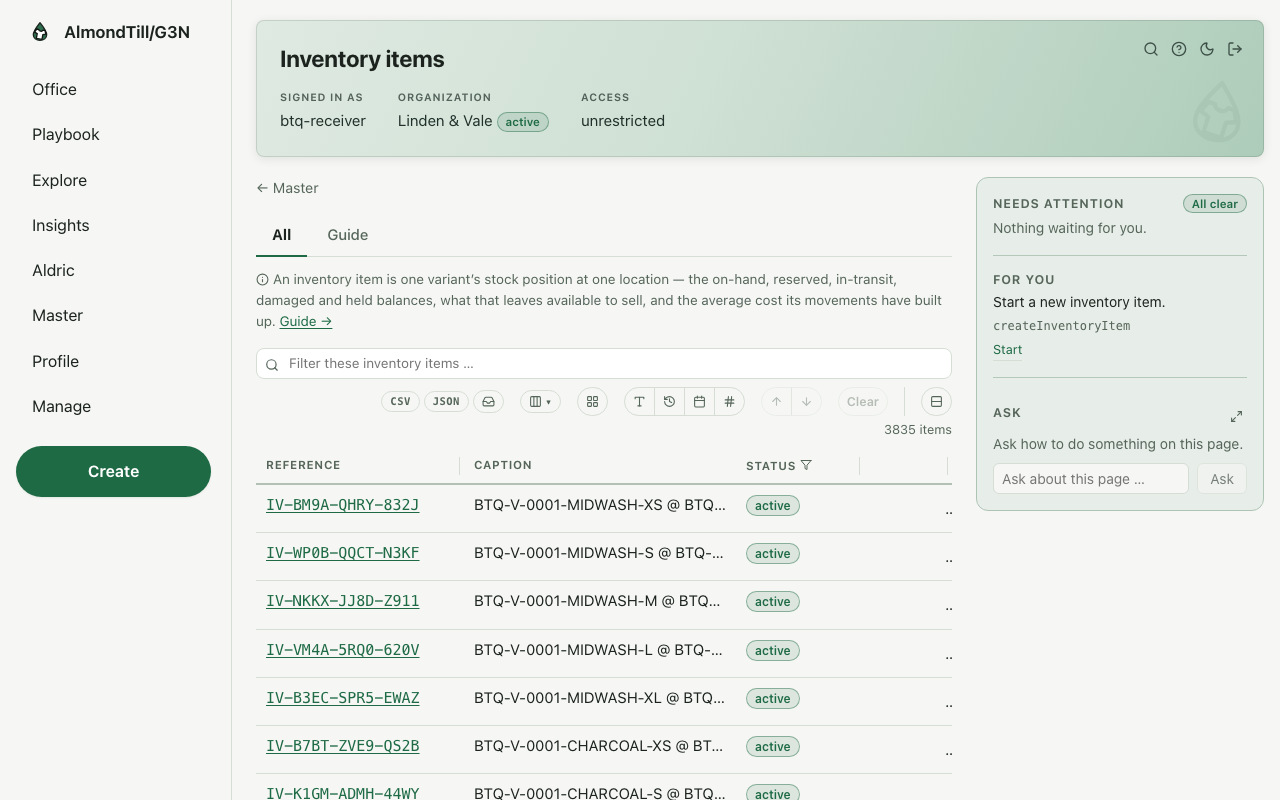
Step 1. Create the item’s stock identity at the location.
Step 2. Book stock in against a purchase — the on-hand rises, the receipt records what arrived.
Step 3. Check the item’s ledger against its balances — do the books add up?
What you see
The floor item of Tops style 1 (FW25) was stocked this way once; its stock identity at the location is what every later movement writes to.
Try it
- Open Inventory items and read the ones at the back room.
- Create the stock identity of a variant new to the location.
- Book stock in against a purchase and verify the item — do the books add up?
Where to learn more
- The inventory item record and its operations: Inventory item.
- The same walk as the office runs it: Stock an item at a location.
- The course in the office: on the Playbook, open Learn and the lesson Stock an item at a location.
5. Ask another location for stock
In the office this is the play Ask another location for stock — Raise the request, submit it to the sending location, let them accept — reserving the stock and starting the transfer — or decline it; open a regular lane between two locations that move stock often.
The mechanisms in this chapter: Lists — finding things · A record page
What you will do
Raise the request and submit it to the sending location; they accept — reserving the stock and starting the transfer — or decline. A regular lane between two locations that move stock often is opened once and ranked for every later move.
The walk
Where it starts: the office’s Transfer requests page.
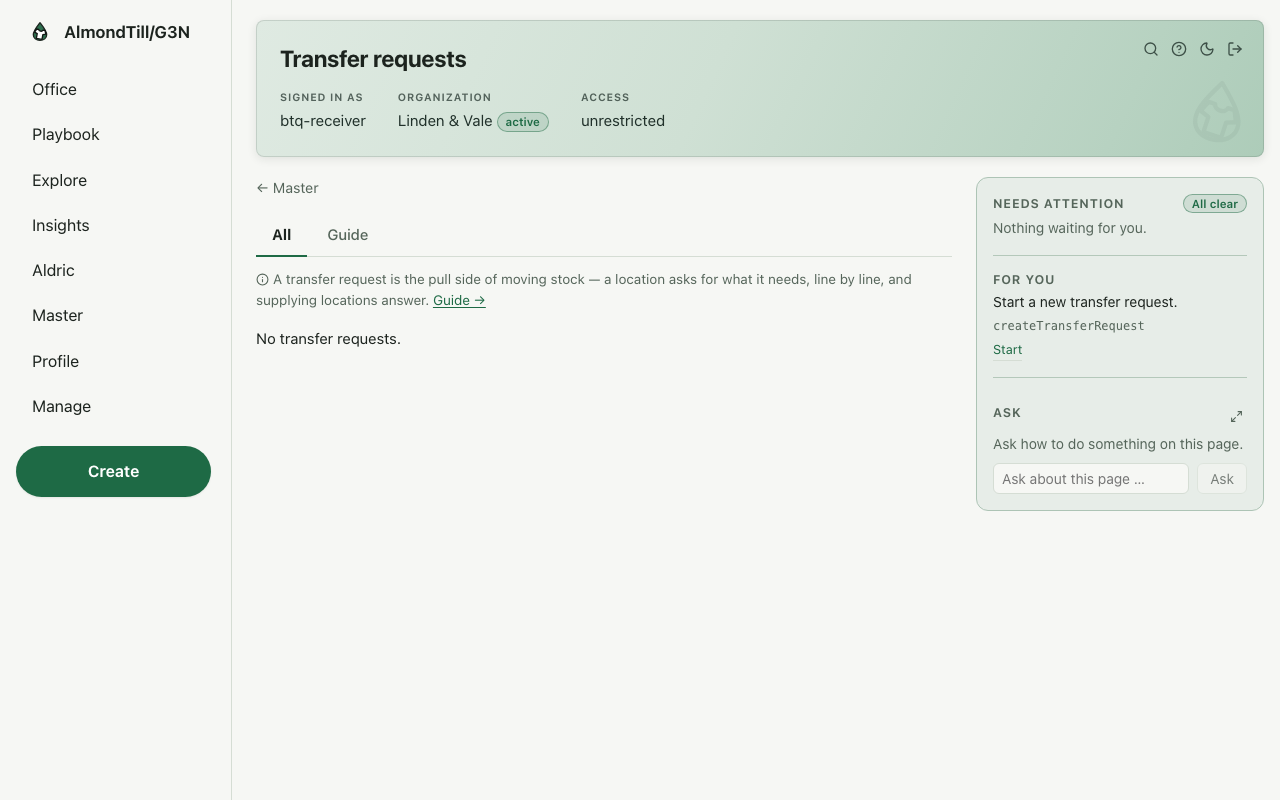
Step 1. Raise the request and submit it — the pull request reaches the sending location. Open Transfer requests.
Step 2. The sender accepts — the stock reserves and the transfer paperwork starts — or declines.
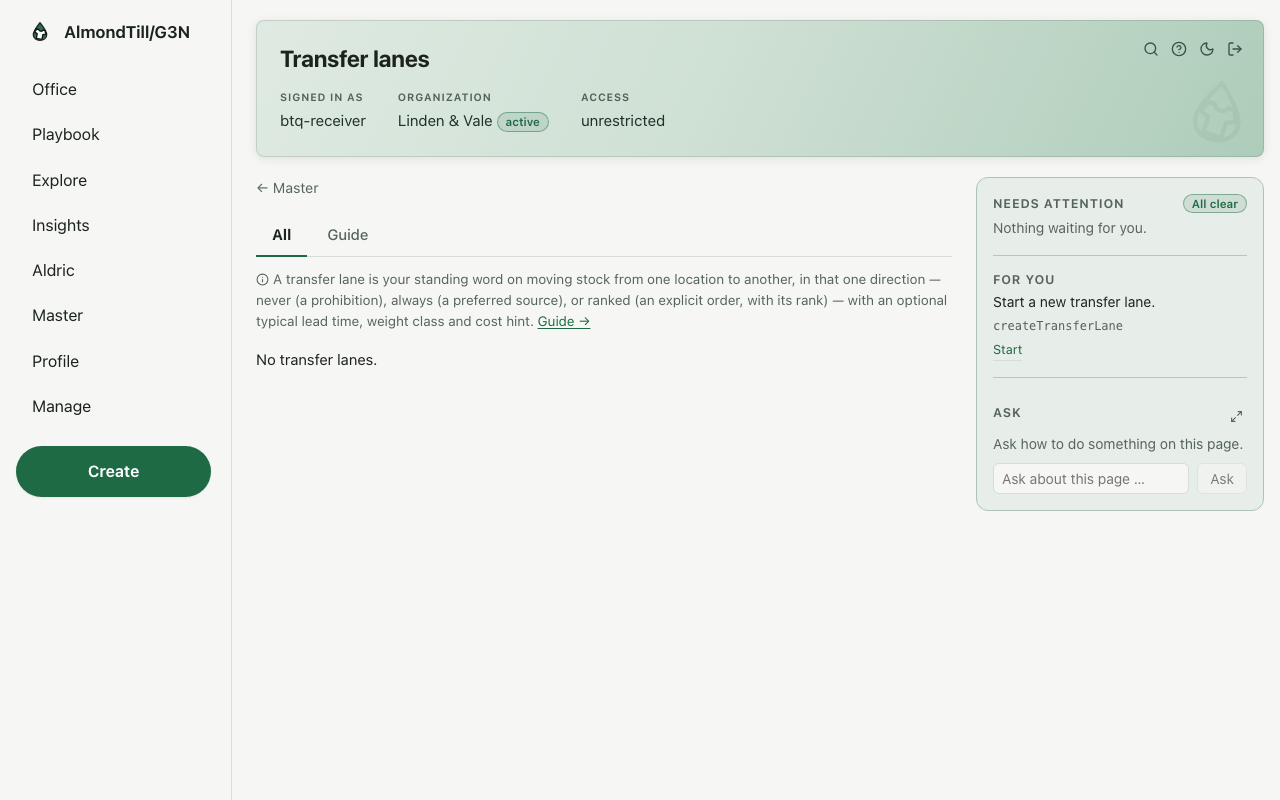
Step 3. Open a regular lane — a named sender-to-receiver route — and see which lanes serve a move best. Open Transfer lanes.
What you see
A request is paper first: the example shop, Linden & Vale, moves nothing until the sending location accepts.
Try it
- Open Transfer requests and raise one for two units from the floor; submit it.
- Read the request’s page — what the sender sees, and what accepting will start.
- Open Transfer lanes and read the lanes between your locations.
Where to learn more
- The transfer request record and its operations: Transfer request; the lanes: Transfer lane.
- The same walk as the office runs it: Ask another location for stock.
- The course in the office: on the Playbook, open Learn and the lesson Ask another location for stock.
6. Keep the shelves replenished
In the office this is the play Keep shelves replenished — Set how reorder suggestions are computed for a scope, read the maths per item, and see what to reorder — nothing is ordered until you raise the purchase orders.
The mechanisms in this chapter: Lists — finding things · A record page
What you will do
Set how reorder suggestions are computed for a scope, read the maths per item — minimum, maximum, lead time, safety stock — and see what to reorder from the sales pace and the stock levels. Nothing is ordered from this page: a suggestion becomes stock only when a purchase order is raised.
The walk
Where it starts: the office’s Replenishment rules page.
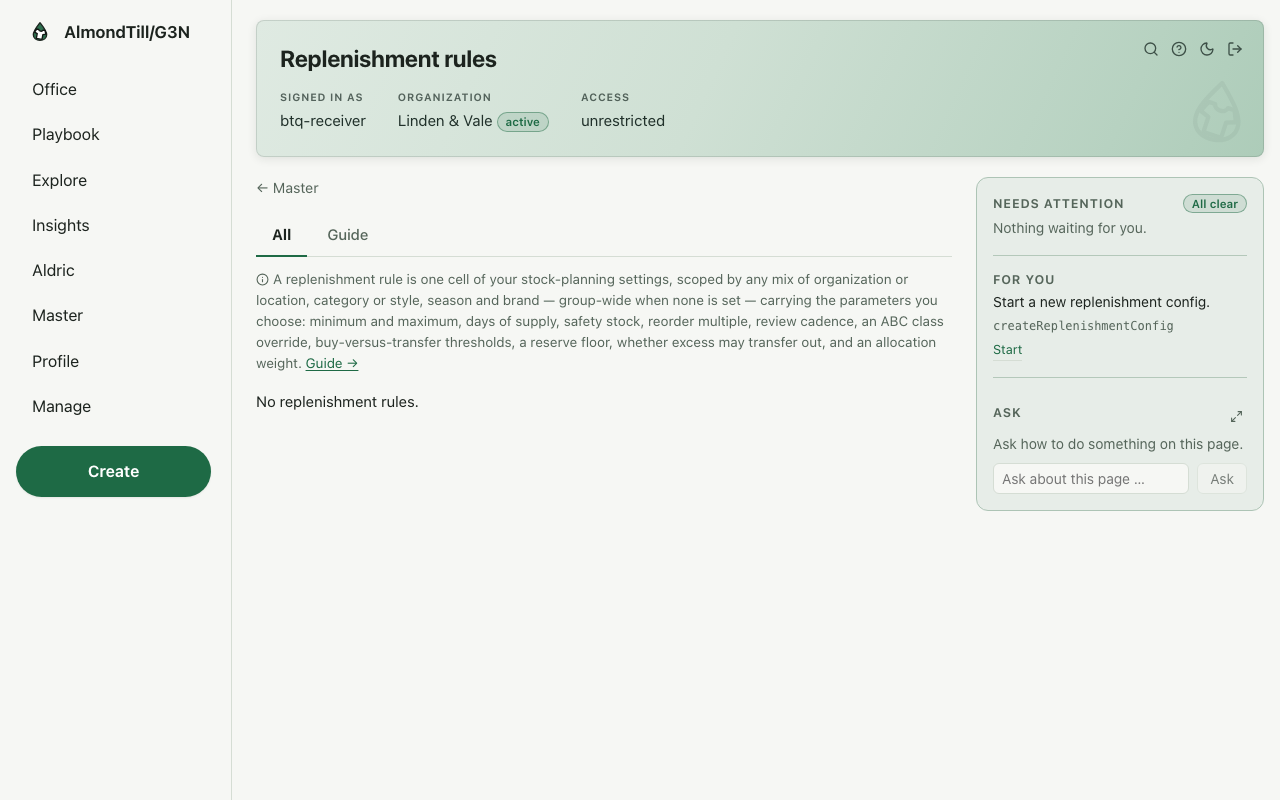
Step 1. Set how suggestions are computed for the scope.
Step 2. Read the reorder maths per item — min/max, lead times, safety stock.
Step 3. See what to reorder from your sales pace and stock levels.
What you see
The example shop took 26 deliveries last month; the suggestions on this page are where the next ones start.
Try it
- Open Replenishment rules and read the rule for the back room.
- Open the reorder maths for one item and read its minimum, maximum and lead time.
- Read the suggestions and compare them with what is on the shelf.
Where to learn more
- The replenishment rule record and its operations: Replenishment config.
- The same walk as the office runs it: Keep shelves replenished.
- The course in the office: on the Playbook, open Learn and the lesson Keep shelves replenished.
With your assistant
Connect Claude or ChatGPT on the office page Connect your AI assistant.
Ask first: where am I, and what is next? The assistant calls whats_next and answers who you are, what needs your attention and what is yours to do.
The ready-made questions: Start my day · What needs my attention · Show me a report · Walk me through a play · Teach me.
The reports you may ask for: Stock movements by kind and period · Sell-through and days of supply · Shrink: adjustments and count corrections by reason · Low stock against the rules · Open purchase orders · Receipts against orders · Stock on hand.
The plays you can run whole, by shelf: Procurement (1) · Warehouse (3) · Work (3) · Insights (1) · Integrations (1) · Manage (1).
A change is shown as a rehearsal first. It happens only when the person says yes, as them, within their access.
People, devices, card payments and new organizations stay in the office.