On this page
- 1. Order the month’s core stock — and receive it when it lands
- 2. Count one category on a Tuesday — and post the differences
- 3. Take the return the register could not
- 4. Approve what the till may not do alone
- 5. Open, run and close a till day — as the manager
- 6. Give a discount on a sale — a coupon, points or a staff rate
- 7. Set the rates your tills take foreign cash at
- With your assistant
The manager’s manual
This manual is for the person who runs the shop day to day. Read it with the office open in another window: every chapter is one thing you will actually do, walked step by step, with a screenshot of each page you will see.
What you need. A manager’s sign-in to the office, and a few minutes per chapter. Nothing here changes your records until you press a save button yourself; the walks show where things are and what happens when you act.
The example shop. The screenshots and the figures come from Linden & Vale — a fictional Toronto boutique with a year of trade, born for these pages. Every figure below was read from its own records on 17 October 2026; nothing is typed by hand. Your own shop’s pages will show your own figures in the same places.
1. Order the month’s core stock — and receive it when it lands
In the office this is the play Stock arrives — from purchase order to the shelf — How goods enter your business on paper and in fact: you order from a vendor, the order is approved and issued, and when the boxes arrive a receipt records exactly what came in — your stock figures move only when the receipt posts.
The mechanisms in this chapter: Lists — finding things · A record page
What you will do
Raise the purchase order for the core range you reorder every month, see it approved and issued, and when the boxes reach the back room record the receipt and post it. The order is the agreement with the vendor; the receipt is what actually arrived; your stock figures move only when the receipt posts.
The walk
This walk starts wherever you are in the office.
Step 1. The order is the agreement — what you asked the vendor for, at what cost, for which location. Open Purchase orders and create one; add the lines you are ordering. Open Purchase orders.
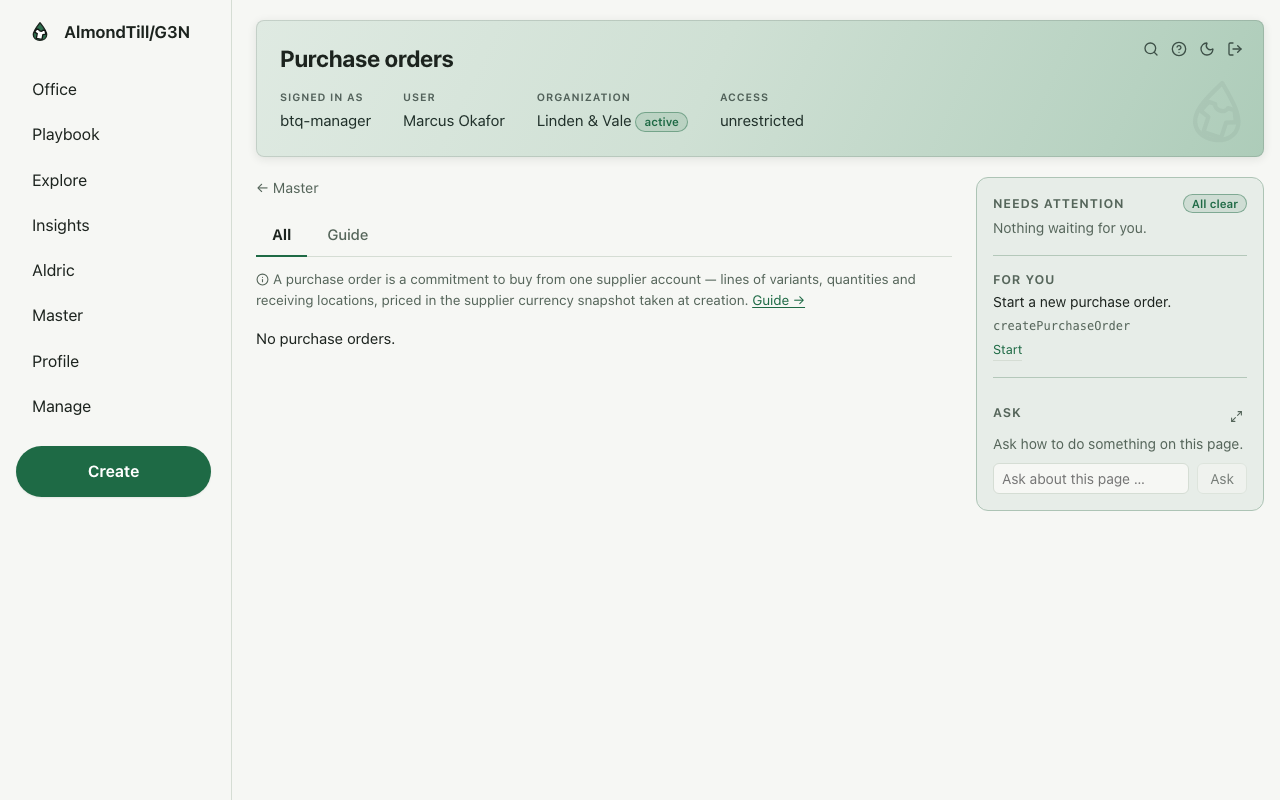
Step 2. A submitted order goes to review; approval commits the spend; issuing sends it to the vendor — three separate decisions, each recorded. The order page offers each act when its moment comes. Open Purchase orders.
Step 3. The receipt is the arrival record — what actually came, against which order lines. Start a receipt for the order and capture the quantities that arrived. Open Receipts.
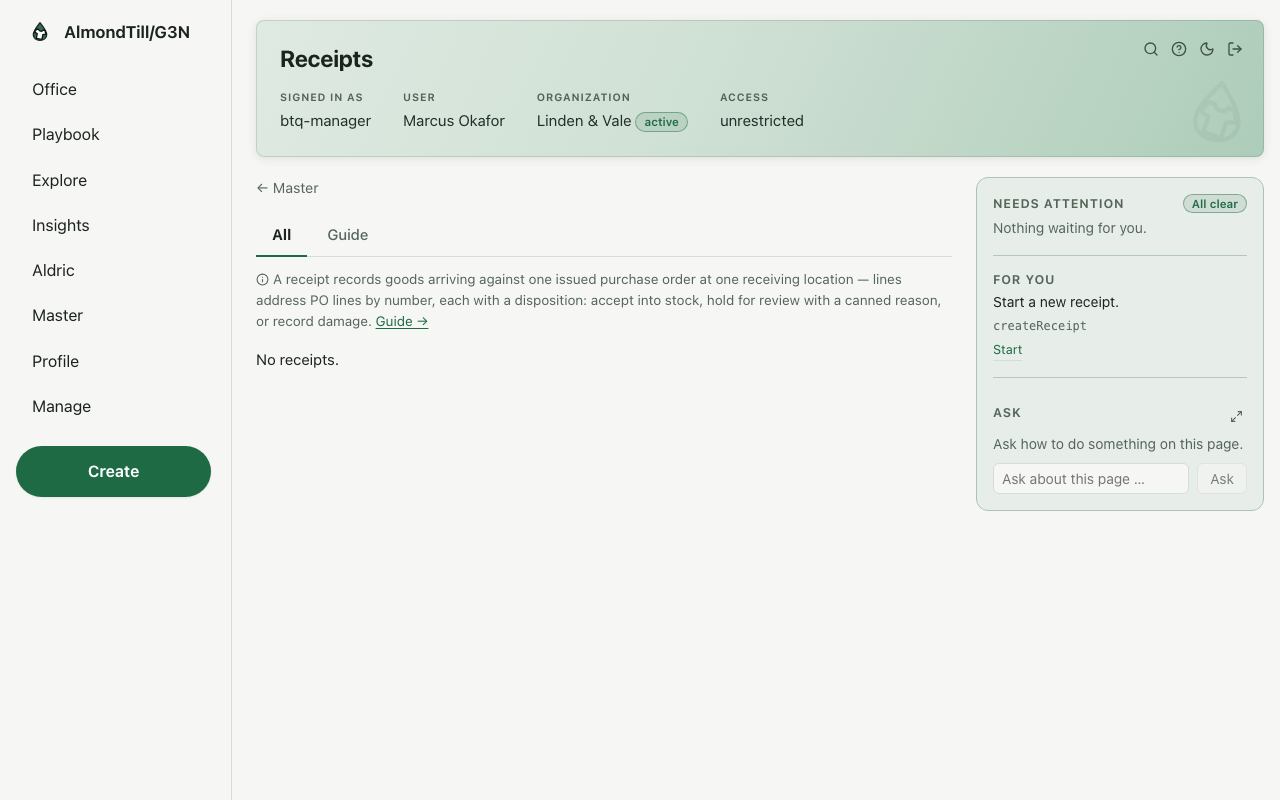
Step 4. Posting moves your stock figures — until then nothing is on hand; a mistaken receipt cancels instead. Post from the receipt page once the quantities are checked. Open Receipts.
What you see
Last month the example shop’s departments sold Alterations CAD 825.00 (25 units) · Bags CAD 6179.20 (42 units) · Belts & Small Goods CAD 3151.70 (52 units) · Bottoms CAD 18544.20 (132 units) · Dresses CAD 29829.20 (139 units) · Knitwear CAD 28519.50 (139 units) · Knitwear CAD 27629.20 (145 units) · Outerwear CAD 51839.50 (140 units) · Outerwear CAD 34813.90 (110 units) · Scarves & Hats CAD 2882.60 (43 units) · Shirts CAD 12625.20 (148 units) · Tops CAD 12704.60 (151 units) · Trousers CAD 18633.30 (141 units) · Total CAD 248177.10 (1407 units) — the sell-through the monthly core order replaces, line by line.
Try it
- Open Purchase orders and create one for your core vendor; add the lines and read the order’s total before you submit it.
- Approve and issue it from the order’s page — three separate acts, each recorded with your name.
- When the boxes arrive, start a receipt against the order, capture what came, and post it; open the stock card of one line and watch the on-hand figure move.
Where to learn more
- The purchase order record and its operations: Purchase order; the receipt: Receipt.
- The same walk as the office runs it: Stock arrives — from purchase order to the shelf.
- The course in the office: on the Playbook, open Learn and the lesson Stock arrives — from purchase order to the shelf.
2. Count one category on a Tuesday — and post the differences
In the office this is the play Count the shelves against the books — How the books stay honest: a count freezes a location’s lines, the counter works blind against the shelves, captures record what was physically found, and posting moves the books by exactly the differences — no more, no less.
The mechanisms in this chapter: Lists — finding things · A record page
What you will do
Set up a cycle count for one category at one location, start it so the counters work blind, capture what they find, and post the differences. Posting moves the books by exactly the variances — no more, no less — and the count becomes history; a recount is a new count linked to the first.
The walk
This walk starts wherever you are in the office.
Step 1. The count names its location and why it is being taken — wall-to-wall, a scheduled cycle, or a spot check. Open Stock counts and create one for the location. Open Stock counts.
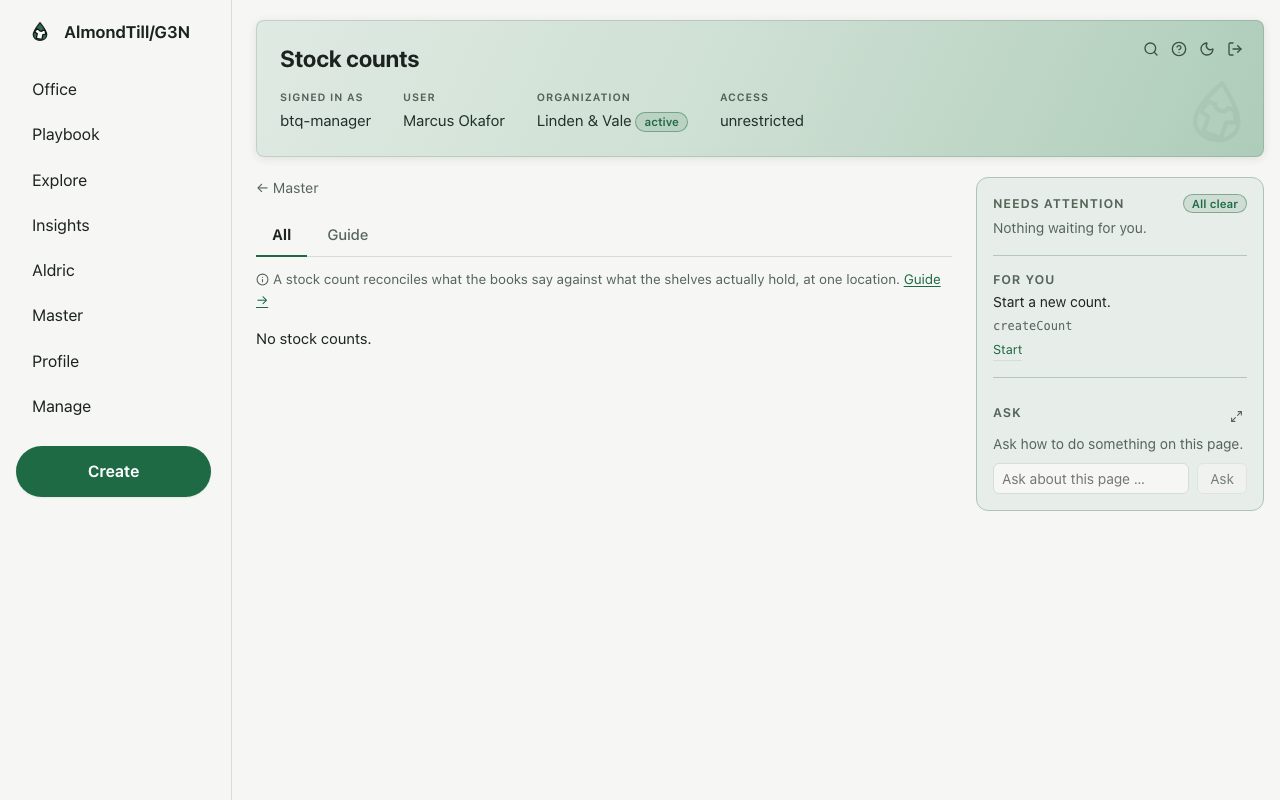
Step 2. Starting freezes the shelf list into concrete lines and hides the expected figures — an honest count is a blind count. Start from the count page when the counters are ready. Open Stock counts.
Step 3. Each capture records the physically-counted quantity — an explicit zero is a real answer; re-counts overwrite while counting. Capture quantities on the count page, line by line. Open Stock counts.
Step 4. Posting moves the books by exactly the variances and the count becomes history; a recount is a new linked count. Post from the count page once every line is captured. Open Stock counts.
What you see
The example shop is Linden & Vale; a posted count moves its books by exactly the differences found, and nothing else.
Try it
- Open Stock counts and create a cycle count for one category at the back room.
- Start it and read the count’s page: the expected figures are hidden while the count runs.
- Capture two lines, post the count, and open one of the items’ stock cards to read the movement the posting wrote.
Where to learn more
- The count record and its operations: Count.
- The same walk as the office runs it: Count the shelves against the books.
- The course in the office: on the Playbook, open Learn and the lesson Count the shelves against the books.
3. Take the return the register could not
In the office this is the play Take a return and refund it — Create the return, take the goods back — sellable or damaged as received — approve it, pay the customer back on the original method where possible, and close it. At the till with a receipt, one step does the whole walk.
The mechanisms in this chapter: Lists — finding things · A record page
What you will do
When a cashier cannot finish a return at the till, the return comes to you: open it, take the goods back as received — sellable or damaged — approve it under your own name, pay the customer back on the original method where possible, and close it. At the till with a receipt, one step does the whole walk.
The walk
Where it starts: the office’s Returns page.
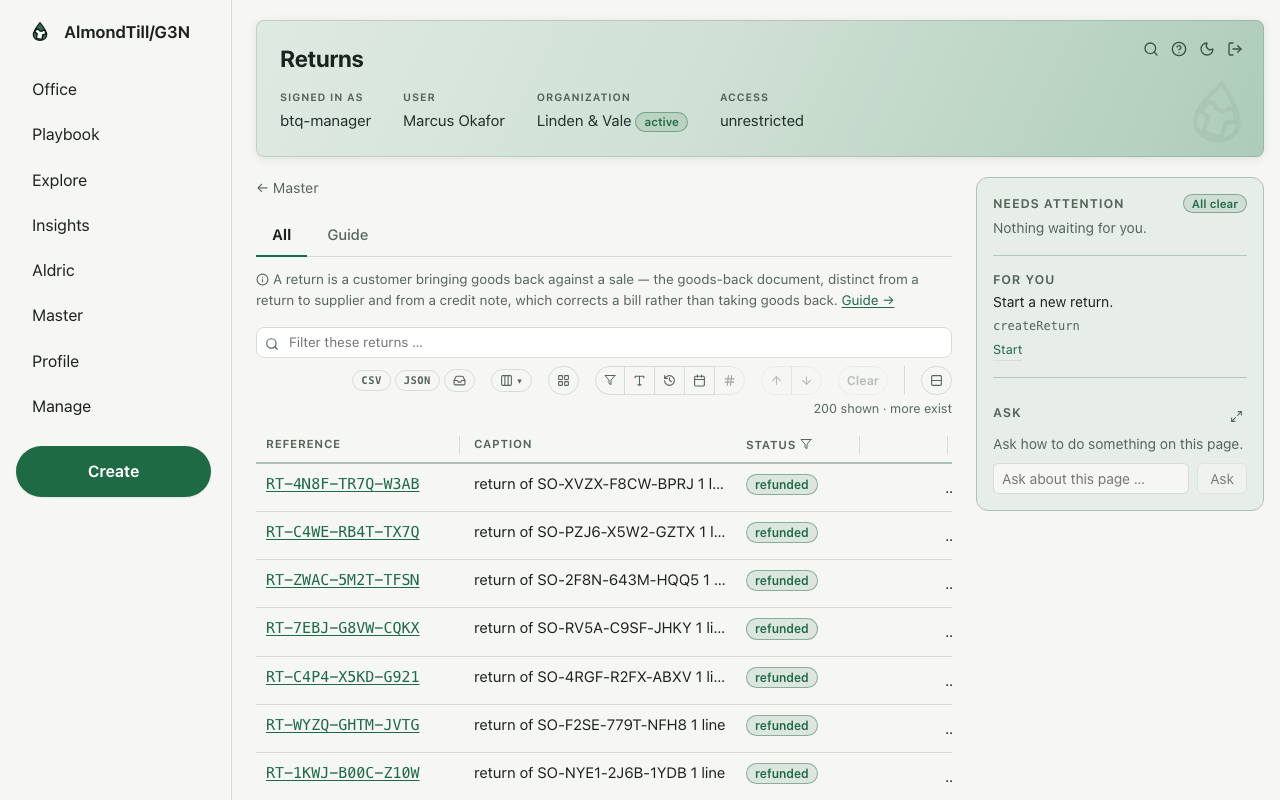
Step 1. Create the return.
Step 2. Take the goods back — stock returns bucketed as you receive it.
Step 3. Approve it — the approval names you.
Step 4. Pay the customer back — money out, permanently — and close it.
Step 5. At the till, with a receipt: approve, receive and refund cash from the drawer in ONE step.
What you see
The example shop is Linden & Vale and takes CAD and USD; every return it records keeps who approved it and how the customer was paid back.
Try it
- Open Returns and read one that is waiting; open the order it came from.
- Receive the goods — sellable or damaged — and approve the return.
- Refund it and close it; read the return’s page once more and find your name on the approval.
Where to learn more
- The return record and its operations: Return.
- The same walk as the office runs it: Take a return and refund it.
- The course in the office: on the Playbook, open Learn and the lesson Take a return and refund it.
4. Approve what the till may not do alone
In the office this is the play Approve what the till may not do alone — A discount, a return or a void above someone’s limit files an approval request; a manager grants it — lending their authority to that exact act — or denies it.
The mechanisms in this chapter: The office at a glance · Lists — finding things
What you will do
A discount, a return or a void above someone’s limit files an approval request from the till. You read the request, grant it — lending your authority to that exact act, never to the person — or deny it. The requests wait in the Needs attention panel and on their own list.
The walk
Where it starts: the office’s Approval requests page.
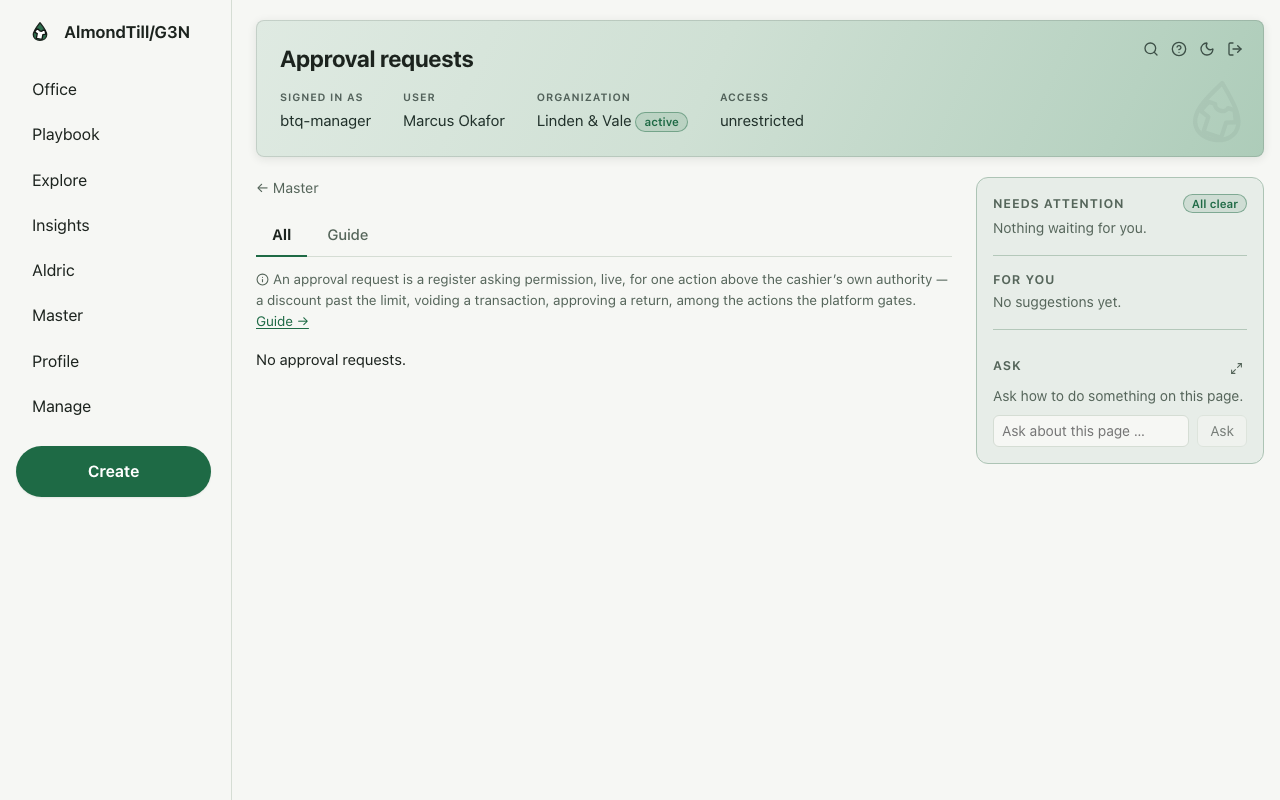
Step 1. Ask for approval of the blocked act.
Step 2. Grant it — your authority unblocks that exact act; never self-approve.
Step 3. Or deny it.
What you see
The example shop closed 1 till session(s) on its last closed day; every approval its tills ask for stands on this list with the name of the person who granted or denied it.
Try it
- Open Approval requests and read what is waiting and who asked.
- Grant one and read its page: your name, the moment, the act it unblocked.
- Deny one and read the words the till will show.
Where to learn more
- The approval request record and its operations: Approval request.
- The same walk as the office runs it: Approve what the till may not do alone.
- The course in the office: on the Playbook, open Learn and the lesson Approve what the till may not do alone.
5. Open, run and close a till day — as the manager
In the office this is the play Open, run and close a till day — Open the drawer with a counted float, record cash moving in or out outside a sale, open the drawer without a sale when you must, freeze it for the closing count, and close it — the over/short is the shift’s record.
The mechanisms in this chapter: Lists — finding things · A record page · Insights — dashboards and ready-made reports
What you will do
Open a drawer with a counted float, record the cash that moves outside a sale — a paid-out to the window cleaner, a drop to the safe — with a reason, open the drawer without a sale when you must, then freeze it for the closing count and close it. The over or short against the expected totals is the shift’s permanent record; the Z of the day is a ready-made report you run by the session’s record from the reports room.
The walk
Where it starts: the office’s Till sessions page.
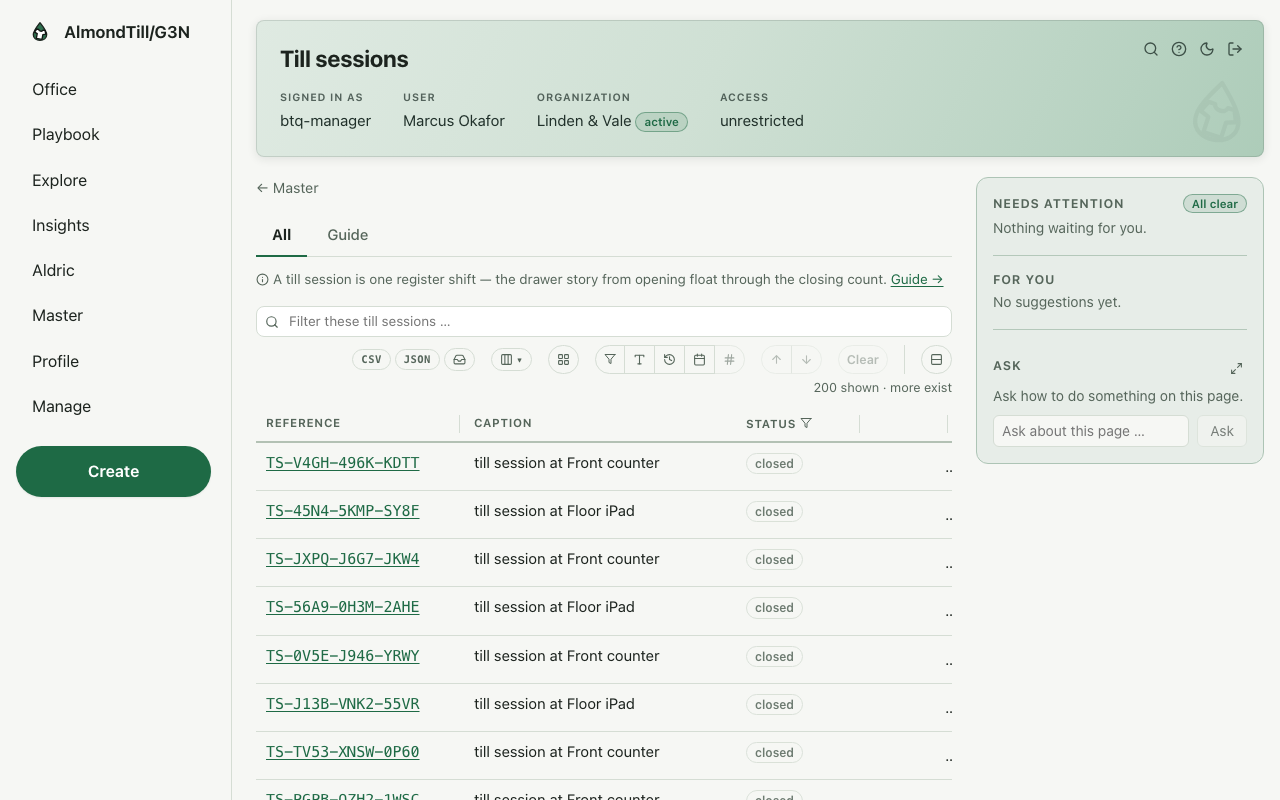
Step 1. Open the till with a counted float.
Step 2. Record cash in or out outside a sale — paid-ins, paid-outs, drops, pickups — with a reason.
Step 3. Open the drawer without a sale — counted, stamped, reason required.
Step 4. Freeze the drawer for the closing count, then close it — the over/short against the expected totals is permanent.
What you see
On its last closed day the example shop closed 1 till session(s); each one’s Z is a report you run by the session’s record from the reports room.
Try it
- Open Till sessions and read the open ones and the last closed one.
- Record a paid-out on an open session with its reason, and read the drawer ledger.
- Begin the close, count the drawer, close it, and run the Z report for that session from the reports room.
Where to learn more
- The till session record and its operations: Till session.
- The same walk as the office runs it: Open, run and close a till day.
- The course in the office: on the Playbook, open Learn and the lesson Open, run and close a till day.
6. Give a discount on a sale — a coupon, points or a staff rate
In the office this is the play Give a discount on a sale — coupon, points or staff — Apply a coupon code, redeem a customer’s loyalty points or attach an employee discount to an open order — the order keeps the maths and the who.
The mechanisms in this chapter: Lists — finding things · A record page
What you will do
On an open order, apply a coupon code, redeem the customer’s loyalty points, or attach an employee discount — one employee per order, named in the record. The order keeps the maths and the who; a coupon is re-validated when the order places.
The walk
Where it starts: the office’s Orders page.
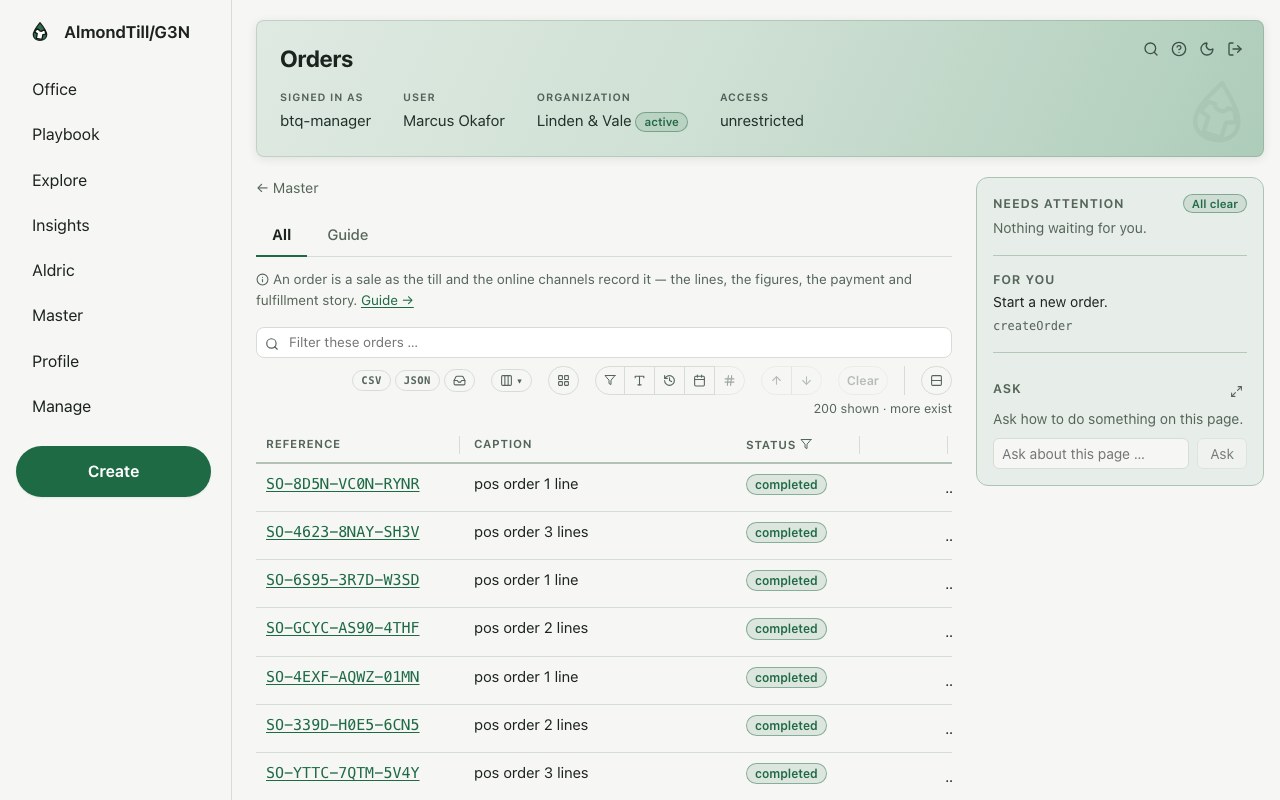
Step 1. Apply a coupon code — re-validated when the order places.
Step 2. Redeem the customer’s points against the order.
Step 3. Attach an employee discount — one employee per order, named in the record.
What you see
The example shop’s programme is Vale Circle — 1 point per CAD 1.00 spent; 100 points redeem CAD 5.00; the tiers Insider (from 0 points) · Gold (from 2000 points, ×1.5) — the points a sale may redeem are its.
Try it
- Open Orders and open one that is still open.
- Apply a coupon code and read the order’s totals before and after.
- Redeem a member’s points on it, or attach a staff discount, and read who the order names.
Where to learn more
- The order record and its operations: Order; the coupons: Coupon.
- The same walk as the office runs it: Give a discount on a sale — coupon, points or staff.
- The course in the office: on the Playbook, open Learn and the lesson Give a discount on a sale — coupon, points or staff.
7. Set the rates your tills take foreign cash at
In the office this is the play Take foreign cash at the till — Set the exchange rates your tills convert foreign cash at, and see exactly which rate a payment would use right now.
The mechanisms in this chapter: Lists — finding things · A record page
What you will do
Set the exchange rate your tills convert foreign cash at — a dated window between two currencies — and check the rate a foreign-cash payment would use at this moment. A cashier takes the second currency at the rate on this page; only you change it.
The walk
Where it starts: the office’s FX rates page.
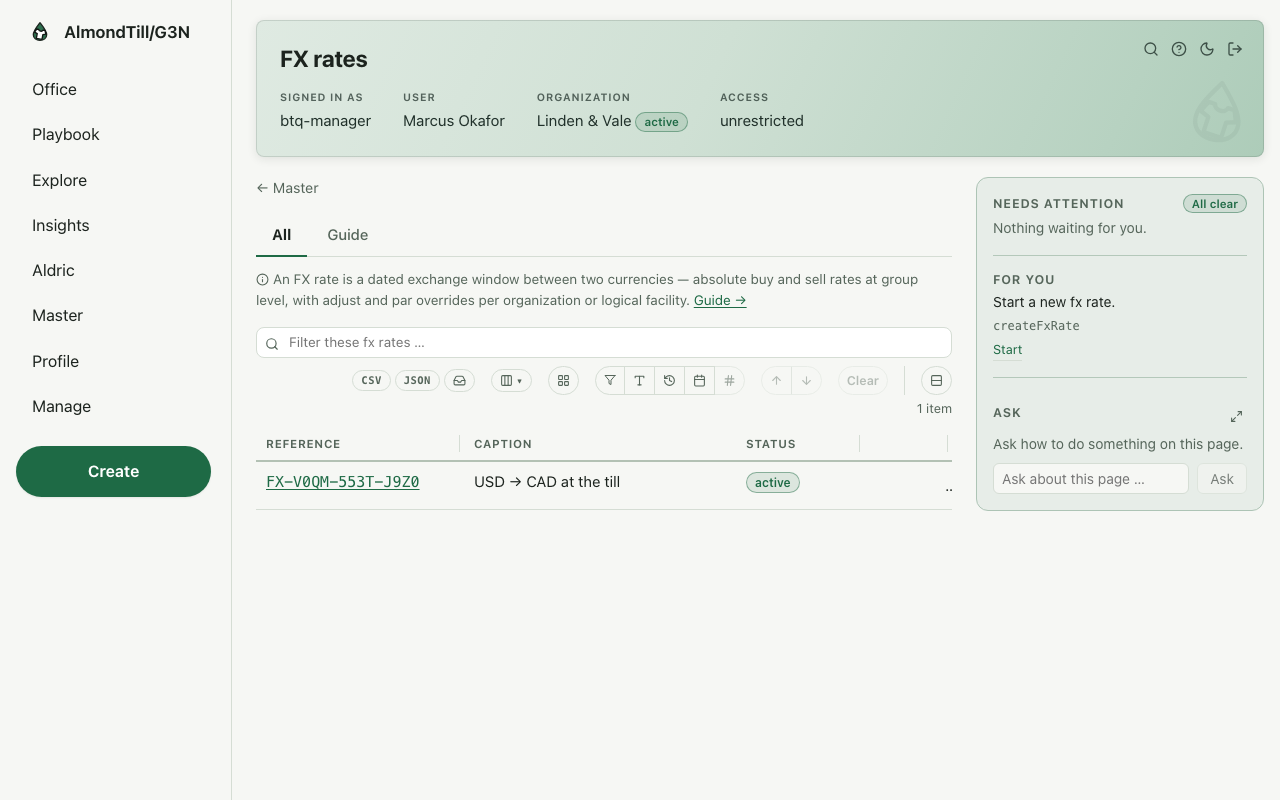
Step 1. Set the rate for the foreign currency your tills accept.
Step 2. Check the rate a foreign-cash payment would use this moment.
What you see
The example shop takes CAD and USD; the rate a payment converts at is the one on this page at that moment.
Try it
- Open FX rates and read the rate for the foreign currency your tills accept.
- Set a new rate with its dates, and check the rate a payment would use right now.
- Ask a cashier to ring a small foreign-cash sale and compare the receipt with the rate you set.
Where to learn more
- The rate record and its operations: FX rate.
- The same walk as the office runs it: Take foreign cash at the till.
- The course in the office: on the Playbook, open Learn and the lesson Take foreign cash at the till.
With your assistant
Connect Claude or ChatGPT on the office page Connect your AI assistant.
Ask first: where am I, and what is next? The assistant calls whats_next and answers who you are, what needs your attention and what is yours to do.
The ready-made questions: Start my day · What needs my attention · Show me a report · Walk me through a play · Teach me.
You may ask for every ready-made report (24).
The plays you can run whole, by shelf: Catalog (8) · Pricing & money (7) · Promotions & loyalty (4) · Customers (5) · Procurement (5) · Address book (1) · Warehouse (6) · POS estate (3) · Selling (5) · Payments & fulfillment (4) · Work (4) · Insights (1) · Integrations (1) · Compliance (2) · Manage (2).
A change is shown as a rehearsal first. It happens only when the person says yes, as them, within their access.
People, devices, card payments and new organizations stay in the office.