On this page
The cashier’s manual
This manual is for the person who opens, runs and closes the drawer. Read it with the office open in another window: every chapter is one thing you will actually do, walked step by step, with a screenshot of each page you will see — and where a step belongs to someone else, the walk says so.
What you need. A cashier’s sign-in to the office, and a few minutes per chapter. Nothing here changes your records until you press a save button yourself; the walks show where things are and what happens when you act.
The example shop. The screenshots and the figures come from Linden & Vale — a fictional Toronto boutique with a year of trade, born for these pages. Every figure below was read from its own records on 17 October 2026; nothing is typed by hand. Your own shop’s pages will show your own figures in the same places.
1. Open the drawer, run it, and close it
In the office this is the play Open, run and close a till day — Open the drawer with a counted float, record cash moving in or out outside a sale, open the drawer without a sale when you must, freeze it for the closing count, and close it — the over/short is the shift’s record.
The mechanisms in this chapter: Lists — finding things · A record page
What you will do
Open the drawer with a counted float, open it without a sale when you must — counted, stamped, reason required — then freeze it for the closing count and close it; the over or short against the expected totals is the shift’s permanent record. A paid-out or a drop outside a sale is the manager’s entry. Your day is mostly at the register; this chapter walks the office’s page of the same till sessions, and the register’s own screens are shown in the register manual when it ships.
The walk
Where it starts: the office’s Till sessions page.
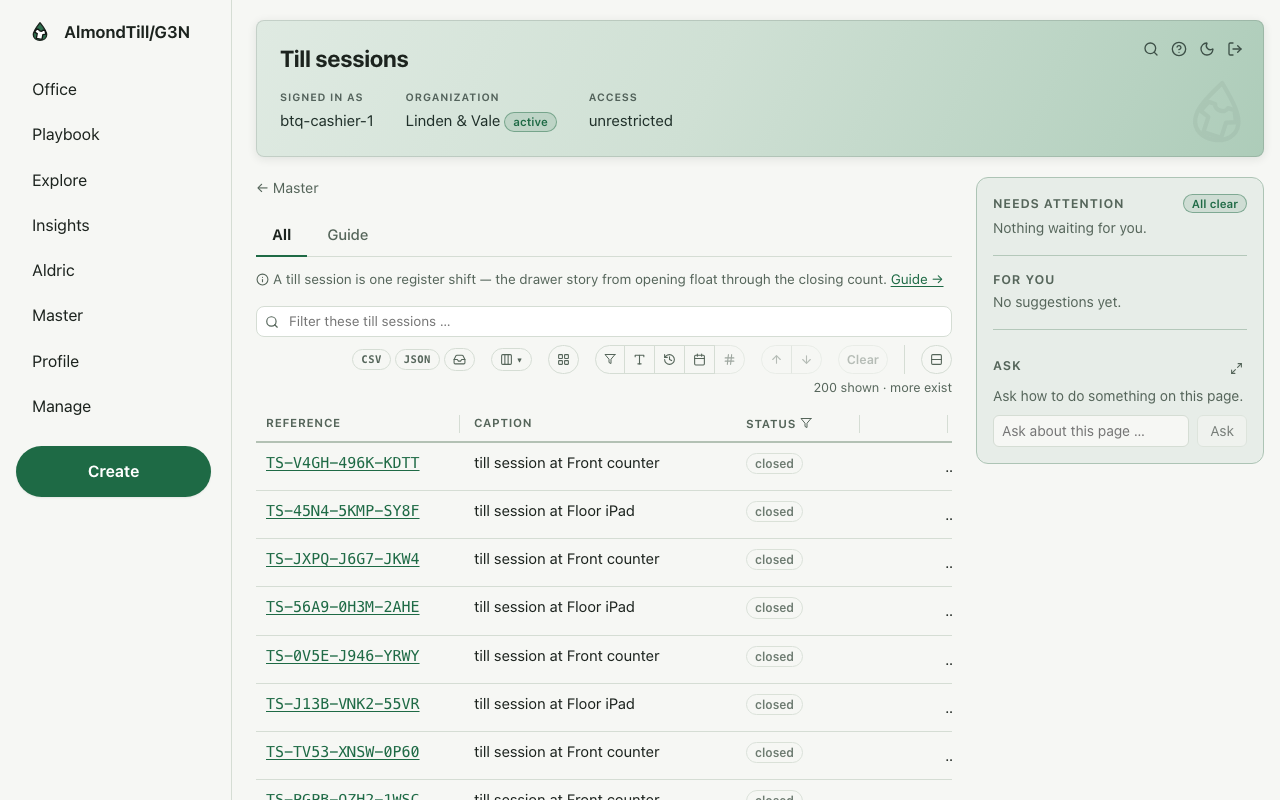
Step 1. Open the till with a counted float.
Step 2. Not yours — Record cash in or out outside a sale is a manager’s step.
Step 3. Open the drawer without a sale — counted, stamped, reason required.
Step 4. Freeze the drawer for the closing count, then close it — the over/short against the expected totals is permanent.
What you see
The example shop is Linden & Vale; its drawers count in CAD, and the over or short at the close is permanent on the session’s record.
Try it
- Open Till sessions and read today’s open drawer and the last closed one.
- Open the drawer with the float you counted, and read the session’s page.
- Begin the close, count the drawer, close it, and read the over or short on the session.
Where to learn more
- The till session record and its operations: Till session.
- The same walk as the office runs it: Open, run and close a till day.
- Your course lists the tasks you can do end to end; this one is walked here as your part.
2. Ring a cash sale
In the office this is the play Ring a sale — Start the order, place it — the moment a cart becomes a committed sale — take the payment in cash, card or another tender, and hold an order to pick it up later.
The mechanisms in this chapter: Lists — finding things · A record page
What you will do
Start the order, place it — the moment a cart becomes a committed sale — and take the payment: cash needs an open drawer, and every tender is permanent once taken. A gift card is a tender like any other once it is on the sale, and a sale paid in the second currency rings like any other — the rate it converts at is the manager’s to set. An order the customer steps away from can be held and resumed.
The walk
Where it starts: the office’s Orders page.
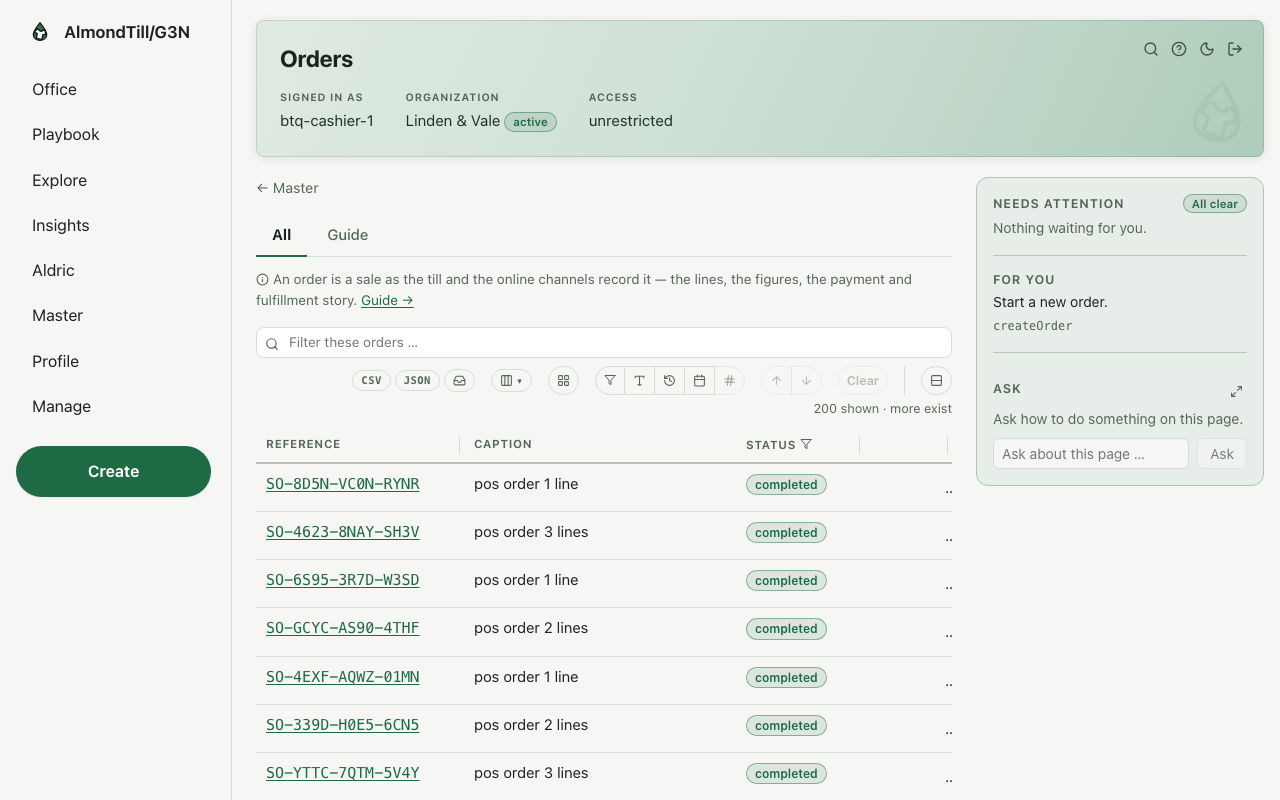
Step 1. Start the order.
Step 2. Place it — prices, minimums and reservations run fresh; the cart becomes a sale.
Step 3. Take the payment — cash needs an open till; every tender is permanent.
Step 4. Put an open order on hold without losing it, and resume it when the customer is back.
What you see
The example shop counts in CAD; in its history 190 gift cards were sold and 189 redeemed.
Try it
- Open Orders and read today’s sales; open one and read its tenders.
- Start an order with one line, place it, and take the payment in cash.
- Put an open order on hold, then resume it, and read its page — nothing was lost.
Where to learn more
- The order record and its operations: Order; the gift cards: Stored value instrument.
- The same walk as the office runs it: Ring a sale.
- The course in the office: on the Playbook, open Learn and the lesson Ring a sale.
3. Take a card payment on the reader
In the office this is the play Take a card payment on the reader — Send the order’s remaining amount to the paired card reader, capture an authorized payment when the money should move, and void a payment that should not have happened — the paper trail stays.
The mechanisms in this chapter: Lists — finding things · A record page
What you will do
Send the order’s remaining amount to the card reader paired to your till, capture an authorized payment when the money should move, and void a payment that should not have happened — permanent, audited, the paper trail kept.
The walk
Where it starts: the office’s Payments page.
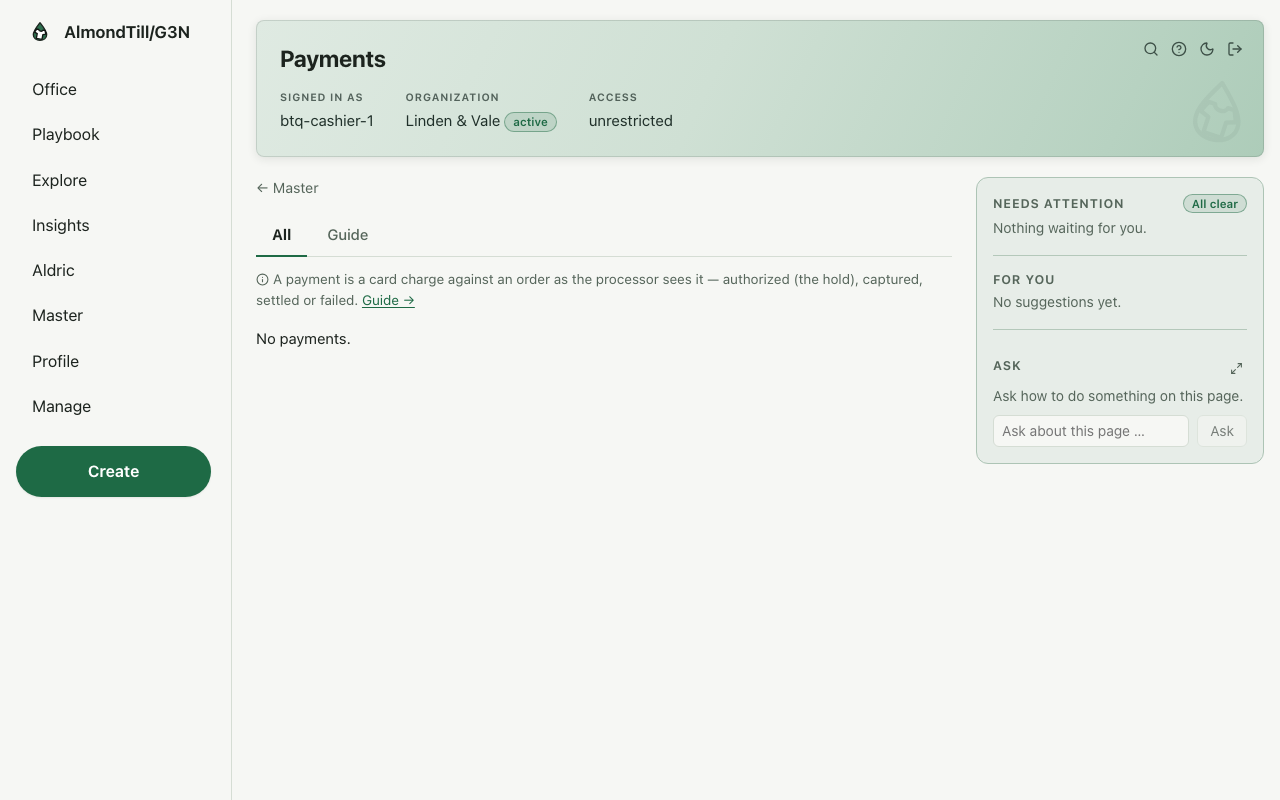
Step 1. Take the card-present payment on the reader paired to this till.
Step 2. Capture an authorized payment — the money moves for real.
Step 3. Void a payment that should not have happened — permanent, audited.
What you see
The example shop is Linden & Vale; every card payment it takes keeps the processor’s answer — authorized, captured or voided — on its own record.
Try it
- Open Payments and read today’s; open one and read its status.
- Take a card payment on the reader for an open order and read the payment it wrote.
- Void a test payment and read the page — the void stands beside the payment, forever.
Where to learn more
- The payment record and its operations: Payment.
- The same walk as the office runs it: Take a card payment on the reader.
- The course in the office: on the Playbook, open Learn and the lesson Take a card payment on the reader.
4. Give a discount — a coupon, points or a staff rate
In the office this is the play Give a discount on a sale — coupon, points or staff — Apply a coupon code, redeem a customer’s loyalty points or attach an employee discount to an open order — the order keeps the maths and the who.
The mechanisms in this chapter: Lists — finding things · A record page
What you will do
On an open order, apply a coupon code, redeem the customer’s loyalty points, or attach an employee discount — one employee per order, named in the record. The order keeps the maths and the who; a coupon is re-validated when the order places.
The walk
Where it starts: the office’s Orders page.
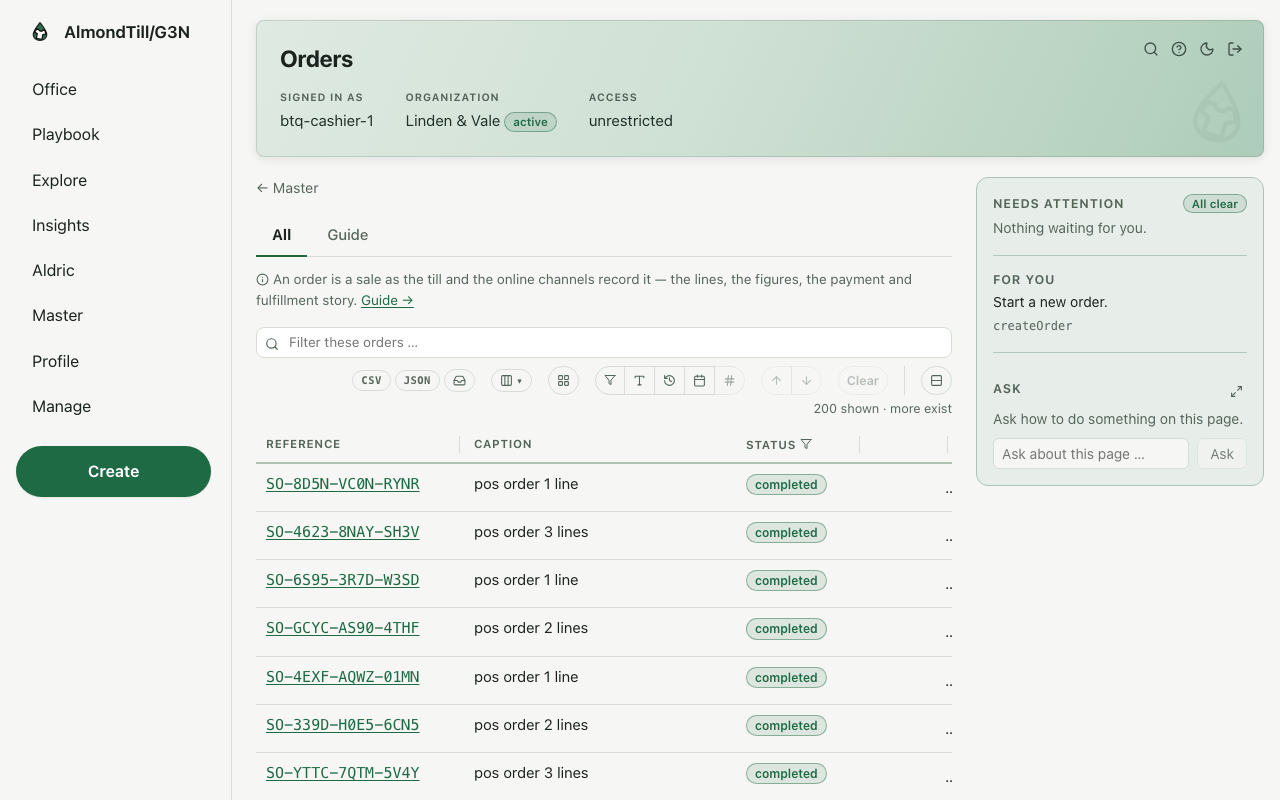
Step 1. Apply a coupon code — re-validated when the order places.
Step 2. Redeem the customer’s points against the order.
Step 3. Attach an employee discount — one employee per order, named in the record.
What you see
The example shop counts in CAD; the order keeps the maths of every discount and the name of who applied it.
Try it
- Open an order that is still open and apply a coupon code; read the totals before and after.
- Redeem a member’s points against it and read the points line the order carries.
- Attach a staff discount to a colleague’s own purchase and read who the order names.
Where to learn more
- The order record and its operations: Order; the coupons: Coupon.
- The same walk as the office runs it: Give a discount on a sale — coupon, points or staff.
- The course in the office: on the Playbook, open Learn and the lesson Give a discount on a sale — coupon, points or staff.
5. Take a return at the till
In the office this is the play Take a return and refund it — Create the return, take the goods back — sellable or damaged as received — approve it, pay the customer back on the original method where possible, and close it. At the till with a receipt, one step does the whole walk.
The mechanisms in this chapter: Lists — finding things · A record page
What you will do
Create the return and take the goods back — sellable or damaged as you receive them. Approving it, paying the customer back and the one-step till return are the manager’s; when a return needs them, it waits on the list until a manager opens it.
The walk
Where it starts: the office’s Returns page.
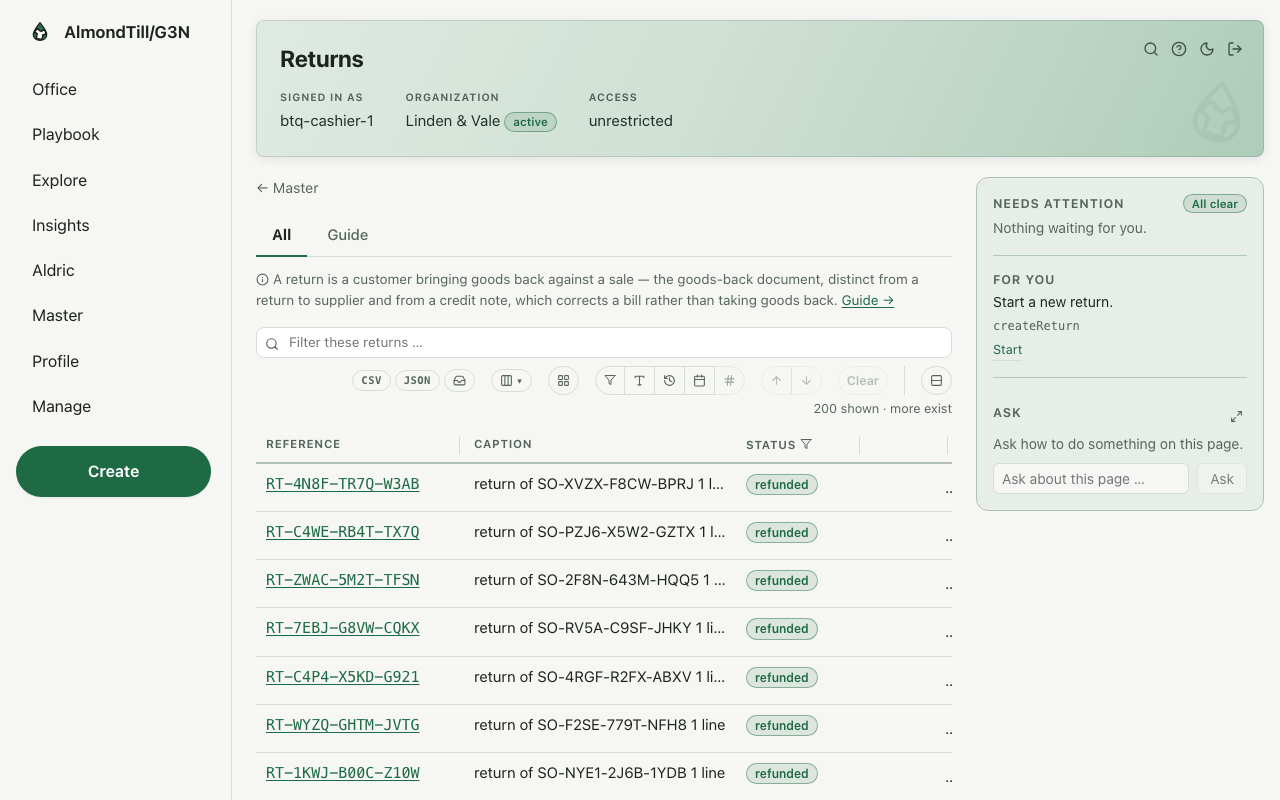
Step 1. Create the return.
Step 2. Take the goods back — stock returns bucketed as you receive it.
Step 3. Not yours — Approve it is a manager’s step.
Step 4. Not yours — Pay the customer back is a manager’s step.
Step 5. Not yours — At the till, with a receipt: approve, receive and refund cash from the drawer in ONE step is a manager’s step.
What you see
A refund goes back the way the customer paid where it can — the example shop takes CAD and USD — once a manager has approved it.
Try it
- Open Returns and read the ones waiting for a manager.
- Create a return for an order with a receipt and receive the goods as sellable.
- Read the return’s page: what it still waits for, and who can give it.
Where to learn more
- The return record and its operations: Return.
- The same walk as the office runs it: Take a return and refund it.
- Your course lists the tasks you can do end to end; this one is walked here as your part.
With your assistant
Connect Claude or ChatGPT on the office page Connect your AI assistant.
Ask first: where am I, and what is next? The assistant calls whats_next and answers who you are, what needs your attention and what is yours to do.
The ready-made questions: Start my day · What needs my attention · Show me a report · Walk me through a play · Teach me.
Over your own records only: Till sessions and drawer reconciliation — the Z report.
The plays you can run whole, by shelf: Selling (2) · Payments & fulfillment (1) · Work (3) · Integrations (1) · Manage (1).
A change is shown as a rehearsal first. It happens only when the person says yes, as them, within their access.
People, devices, card payments and new organizations stay in the office.